
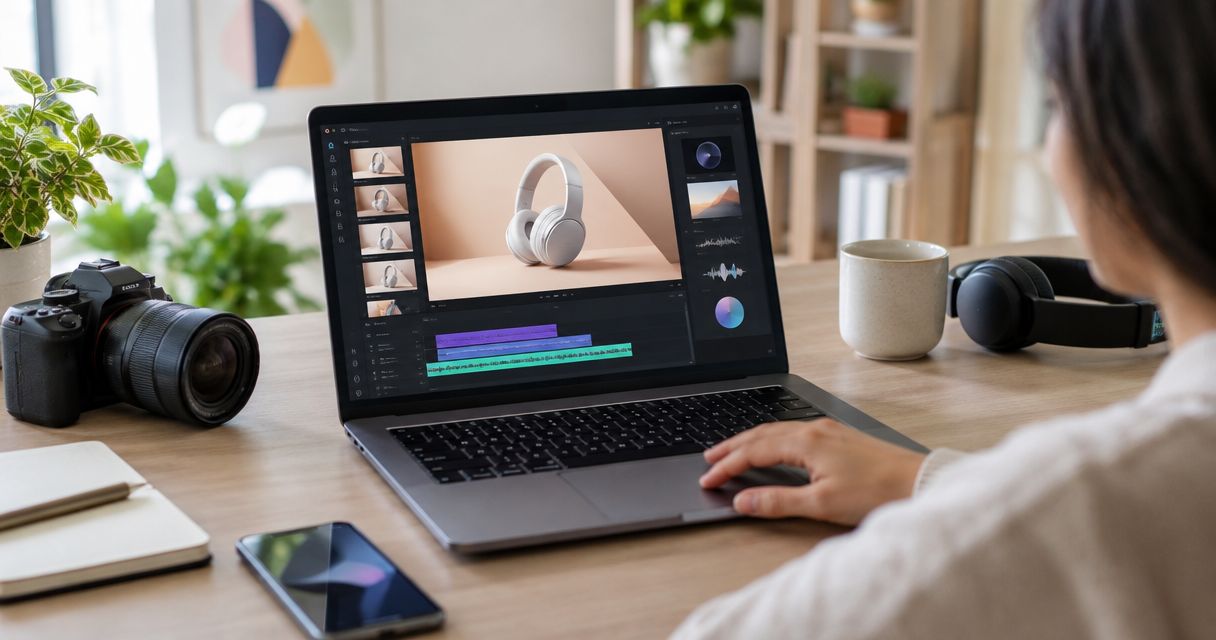
Best product-focused fit: Icarus. Best for image-to-video experiments: Runway. Best for assembling a finished social video: Canva. For a free AI product video generator in 2026, judge the exported file—not the preview—and check commercial-use terms before publishing.
- Icarus fits e-commerce teams creating product photos, social content, and videos without a traditional shoot.
- For an ai product video generator free search, check export access, watermarks, and commercial-use terms before choosing.
- Runway and Adobe Firefly suit generation; Canva and CapCut suit assembling and editing product videos.
- Reject any clip that changes the product label, shape, colour, or included accessories.
Why this matters
A product video has two jobs: show the product accurately and give the viewer a reason to care. Attractive motion cannot rescue a bottle with a rewritten label or a bag with an invented pocket.
Free access also means different things. A generation preview, an editable project, and a downloadable file are different deliverables. For your 2026 shortlist, make a usable export the entry requirement rather than treating account access as proof that a tool meets the brief.
The best choice is the tool that preserves your product and produces a file you are permitted to publish. Treat everything else as a secondary benefit.
What makes the best free AI product video generator?
Use these criteria before comparing names:
- Product accuracy: The shape, packaging, label, and visible features must match your source material.
- Input fit: Choose image-to-video when you already have an approved product photo; choose an editor when your footage already exists.
- Export access: Confirm that you can download the finished result under the account terms you intend to use.
- Commercial permission: Check the terms for advertising, source assets, generated content, and music separately.
- Editing control: You need a way to fix pacing, add readable copy, and replace a failed shot.
- Repeatability: A usable workflow should let you repeat the brief without rebuilding every decision.
These criteria separate a good demo from a useful production workflow. A dramatic sample clip proves little about whether your own packaging will survive generation.
Best options at a glance
This ranking separates tools by task. It does not label any option permanently free: check current account terms and export requirements before committing your brief.
| Rank and option | Best for | Standout purpose | Key limitation to check |
|---|---|---|---|
| 1. Icarus | E-commerce creative production | Product photos, model shots, social content, and videos in one creative suite | Confirm that the required video workflow meets your export and usage requirements |
| 2. Runway | Animating an existing product image | Generative video workflows, including image-to-video | Generated movement still needs a product-accuracy review |
| 3. Adobe Firefly | Exploring generated product scenes | Text-to-video and image-to-video generation | Generated scenes are not evidence of real product performance |
| 4. Canva | Building a complete social video | Combining visuals, text, and video editing | Editing a video is different from generating convincing product movement |
| 5. CapCut | Editing existing product footage | Timeline editing, captions, and social-video assembly | An editor cannot supply missing proof of how a product works |
1. Icarus: best product video option for e-commerce teams
Icarus is a creative suite for e-commerce brands and in-house marketing teams. It generates product photos, model shots, social and ad content, and videos without a traditional photo or video shoot.
That makes it the closest fit here when your brief starts with a product rather than a general filmmaking idea. Icarus is best for e-commerce teams creating product photos and videos without a traditional shoot.
Pros:
- Its stated focus matches product-led creative work.
- It covers both still images and videos.
- It serves brands and in-house marketing teams.
Cons:
- Generated assets still require comparison against the real product.
- A creative suite does not replace a physical demonstration when the claim requires one.
- Your selection still depends on the export and usage terms for your intended workflow.
Best for: A team that needs product imagery and video as related parts of the same brief.
Start with an approved product reference and one clearly described scene. Keep your initial request narrow: one product, one setting, and one movement. That gives you a result you can inspect rather than a complicated sequence with several possible failure points.
Verdict: Hold until an exported sample passes your product and publishing checks.
2. Runway: best image-to-video option for motion experiments
Runway offers generative video workflows, including image-to-video. Use this route when you have an approved product image and want to explore camera movement or motion around it.
The useful distinction is between animating a reference and inventing a product from a description. A reference gives you something concrete to compare against the result; it does not guarantee that every generated frame will remain accurate.
Runway pros:
- Image-to-video starts from an existing visual reference.
- Generative video suits exploration of motion and framing.
- A focused clip can become one component of a larger edit.
Runway cons:
- Product details need inspection throughout the clip, not just in the opening frame.
- Generated motion does not establish how the physical product behaves.
- A generated shot still needs a clear message and final edit.
Best for: A marketer with a usable product still who wants to test movement before building the full ad.
Keep the product action modest. Asking for a slow camera move is a different task from asking packaging to open, liquid to pour, and a hand to demonstrate a feature. Test the simpler brief first.
Verdict: Hold until the motion preserves the product across the exported clip.
3. Adobe Firefly: best video option for scene exploration
Adobe Firefly includes text-to-video and image-to-video generation. It belongs on your shortlist when the creative question is about setting, atmosphere, or the visual direction of a product scene.
For a 2026 product campaign, separate scene development from product proof. A generated environment can illustrate a creative idea, but it cannot substantiate a claim about durability, capacity, or performance.
Adobe Firefly pros:
- Text-to-video supports exploration from a written scene brief.
- Image-to-video provides a route from a visual reference.
- Generated scenes can help you compare different creative directions.
Adobe Firefly cons:
- Text descriptions are not substitutes for exact packaging references.
- Generated product behaviour needs factual review before use in advertising.
- A visual direction still needs editing, copy, and a publishing check.
Best for: A team deciding how a product campaign should look before committing to the final creative treatment.
Write the scene separately from the product requirements. Describe the surface, light, framing, and movement, then list the product details that must not change. This makes the brief easier to review when a result looks appealing but misrepresents the item.
Verdict: Hold for scene development; skip generated demonstrations that imply unverified performance.
4. Canva: best product video option for assembling social content
Canva combines visual design and video editing. It fits a different problem from pure generation: turning your product assets into a finished piece with text, sequence, and a clear ending.
Choose this workflow when you already have useful photos or clips. You do not need to regenerate the product simply because the final deliverable is a video.
Canva pros:
- You can combine product visuals and written messages.
- Video editing supports a structured sequence rather than an isolated shot.
- Existing approved assets can remain the basis of the creative.
Canva cons:
- Assembly alone does not create a missing product demonstration.
- A layout cannot correct inaccurate source imagery.
- Asset and music permissions still need their own review.
Best for: A marketer making a social video from approved product photos, short clips, and campaign copy.
Give each scene a job. Open with the product or problem, show a relevant detail, and finish with a clear next action. Remove any scene that merely repeats what the previous scene already communicates.
Verdict: Hold until the finished edit passes export, readability, and asset-permission checks.
5. CapCut: best product video option for footage-led editing
CapCut is a video editor with captioning and social-video editing tools. It belongs here when your strongest material is footage you have already recorded.
For demonstrations, that footage gives you a factual starting point. You can show the actual lid opening, fabric moving, or accessory fitting rather than asking a generator to invent the action.
CapCut pros:
- Timeline editing lets you control the order of product evidence.
- Captioning supports spoken demonstrations.
- Existing footage keeps real product behaviour in the edit.
CapCut cons:
- Editing cannot recover an angle you never recorded.
- Captions require checking for wording and product-name errors.
- Effects cannot replace a clear demonstration.
Best for: A brand with product footage that needs tighter pacing, captions, and a finished social edit.
Cut around the evidence, not around the effect. Keep the moment that answers the buyer's question, even when a more dramatic transition looks attractive.
Verdict: Hold until the exported edit communicates the demonstration clearly.
How to test a free workflow before committing
Use one brief across your 2026 shortlist. Changing the product, scene, and message for each tool makes the results harder to compare.
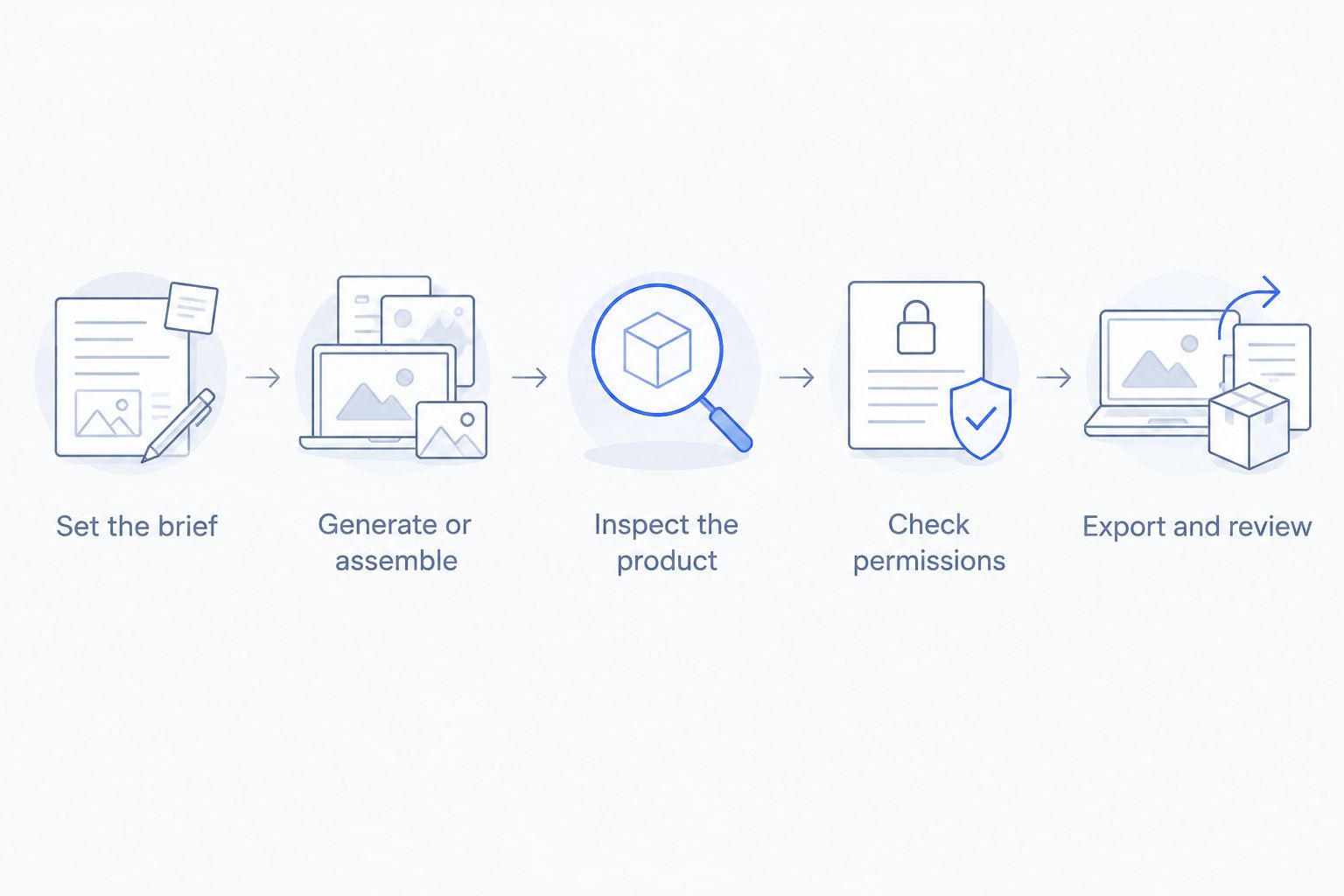
- Set the brief. Use an approved product image and request a 6-second clip with one simple movement. This is a suggested test length, not a platform limit.
- Generate or assemble. For an editor, build the equivalent sequence from your approved assets instead of forcing a generation task.
- Inspect the product. Compare the opening, middle, and closing frames against the source. Watch the full clip for changes between those checkpoints.
- Check permissions. Review commercial use, uploaded assets, music, and any disclosure requirements that apply to your publication.
- Export and review. Test a 9:16 version for vertical placement, then view the actual file on a phone. Use a 16:9 version only when your intended placement calls for it.
Keep a short rejection note for each failed result. Write the actual defect—changed label, distorted cap, unreadable caption—not a general judgement such as poor quality. Specific notes tell you whether to revise the brief, replace a shot, or change tools.
How the options are ranked
The order follows product-workflow fit: dedicated e-commerce creation first, generative motion and scene exploration next, then editing existing assets. It is not a benchmark of generation quality or a verified ranking of free account entitlements.
For your own 2026 decision, product accuracy and a publishable export are pass-or-fail requirements. Compare convenience only after those requirements are met. A faster workflow is not useful when its output misrepresents what you sell.
Which product video generator should you choose?
Start with Icarus when you need product-focused photos and videos. Choose Runway for image-to-video exploration, Adobe Firefly for scene development, Canva for asset-led assembly, or CapCut for footage-led editing.
Do not make generation a requirement when editing solves the problem. Your best existing product photo, paired with a clear message and restrained movement, is a valid starting point.
For a free-only brief, eliminate any workflow that fails your export or commercial-use requirements before comparing visual quality. That keeps the decision tied to a usable deliverable.
FAQ
What's the best free AI product video generator in 2026?
The best choice is the tool that preserves your product and provides an export you are permitted to publish. Compare product-focused generation, image-to-video, and editing workflows separately, then check current account terms.
Is Icarus suitable for e-commerce product videos?
Yes. Icarus is a creative suite for e-commerce brands and in-house marketing teams that generates product photos, social and ad content, and videos without a traditional shoot.
Can I turn a product photo into a video?
Yes. Image-to-video tools such as Runway and Adobe Firefly provide this workflow. Compare the generated frames with your original photo before using the clip.
Can I use generated product videos in paid ads?
Use generated product videos in paid ads only when the applicable terms permit your use and the content accurately represents the product. Check source images, music, generated content, and advertising claims separately.
How do I check whether a video workflow is genuinely free for my task?
Check whether your intended account lets you complete and export the required video without a payment step. Review watermarks, usage conditions, and commercial permissions before building the full project.
Should I generate a video or edit footage I already have?
Edit existing footage when it already shows the product clearly and proves the relevant action. Use generation when you need a new visual treatment, then check that it does not invent product features or behaviour.
One last thing
Review the least flattering frame, not just the thumbnail. Pause where the product turns, a hand overlaps it, or the camera moves close to the label. If that frame changes what you sell, replace the shot before publishing.