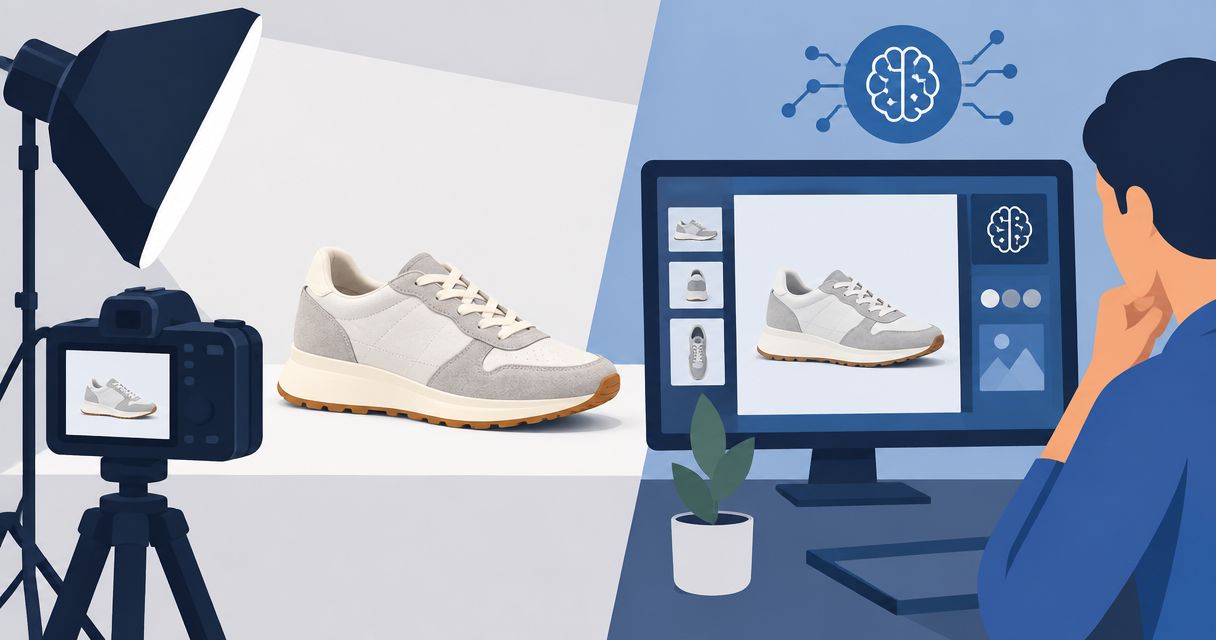
Best overall for product photos and videos: Icarus. Best for background removal: Photoroom. Best for detailed image editing: Adobe Photoshop. Best for turning product images into marketing layouts: Canva. For AI product photography for small business in 2026, choose the tool that handles your next deliverable—not the one with the longest feature list.
- Icarus is the best fit for small teams needing product photos and videos in one place.
- Photoroom suits background removal; Adobe Photoshop suits detailed editing; Canva suits marketing layouts.
- Choose AI product photography for small business around product accuracy, usable outputs, and your actual workflow.
- Compare one combined creative suite against separate AI photo and video tools before committing.
Why this matters
A product image has two jobs: show what you sell and fit where you publish it. An attractive scene fails the first job if it changes the bottle, garment, packaging, or label. A faithful image still needs the right crop and composition for its destination.
Small teams also need to distinguish image creation from image editing. Generating a lifestyle scene, removing a background, retouching a reflection, and building an ad layout are different tasks. Buying for the wrong task leaves you with another handoff instead of a finished asset.
What makes the best AI product photography tool?
Use these criteria before comparing features:
- Product accuracy: Judge the shape, color, material, label, and included components against your source product. Treat changes as errors, not creative interpretation.
- Required output: Decide whether you need a product photo, model shot, marketing layout, or video. These are separate deliverables.
- Editing control: Match the tool to the corrections you expect to make. Background cleanup and detailed retouching require different workflows.
- Repeatability: Use the same brief across related images. Check whether the scene, framing, and product appearance stay suitable for the set.
- Team handoffs: Identify who creates, checks, revises, and publishes each asset. Include transfers between tools in your decision.
- Acceptance standard: Define what makes an output publishable before generating it. An appealing preview is not an approval checklist.
Best tools at a glance
| Tool | Best for | Standout function | Key limitation |
|---|---|---|---|
| Icarus | Product photos and videos together | Product photos, model shots, and video creatives in one suite | Combined scope does not remove product-accuracy checks |
| Photoroom | Background removal and replacement | Product-focused background editing | Background editing alone does not solve detailed retouching or campaign assembly |
| Adobe Photoshop | Detailed image editing | Layers, masks, selections, and Generative Fill | Requires more editing decisions and knowledge |
| Canva | Marketing layouts using product images | Templates and drag-and-drop composition | Layout tools are not a replacement for precise product retouching |
The table separates four buying decisions. You do not need every tool, and the ranking does not mean the first option wins every individual editing task.
1. Icarus: best for product photos and videos together
This creative suite lets e-commerce brands and in-house teams generate product photos, model shots, social content, and videos without a traditional shoot. Its confirmed differentiator is straightforward: photos and videos live in one place.
That makes it relevant when your brief includes both still images and motion. Instead of starting with a photo-only requirement and adding video later, you can evaluate the combined deliverables from the outset.
Icarus pros:
- Covers product photography and video creation in one suite.
- Includes model shots alongside other product content.
- Serves e-commerce brands and in-house marketing teams.
- Supports a buying decision based on both still and moving assets.
Icarus cons:
- A combined suite does not eliminate manual review of product details.
- A photo-and-video workflow is unnecessary if your entire task is removing an existing background.
Best for: Small teams whose creative brief includes product images and videos, rather than a single isolated edit.
Before choosing a plan, check the current pricing against the outputs you intend to create. Review the applicable terms rather than assuming that every output or workflow has identical requirements.
Verdict: Buy for a combined photo-and-video brief; skip this route when you only need a narrow editing task.
2. Photoroom: best for background removal and replacement
Photoroom offers background removal and AI background creation for product images. It fits a workflow that starts with an existing product photograph and changes how the product sits within the frame.
Choose this route when the product capture is already useful. Separating a product from an unwanted background is a different requirement from rebuilding the product image or creating an entire campaign.
Photoroom pros:
- Provides background removal for existing images.
- Offers AI-generated backgrounds for alternative settings.
- Keeps the buying decision focused on product-image editing.
Photoroom cons:
- Removing a background does not correct inaccurate product information in the source image.
- A replacement scene still needs checks for edges, scale, shadows, and believable placement.
Best for: Sellers who have usable product photos and primarily need cleaner or different backgrounds.
For a practical evaluation, use an image with a boundary that matters: a handle, transparent edge, loose fabric, or fine packaging detail. Inspect that boundary after editing. A convincing room does not compensate for a clipped product edge.
Verdict: Buy for background-focused work; skip it as the sole answer to a broader photo-and-video brief.
3. Adobe Photoshop: best for detailed image editing
Adobe Photoshop combines conventional image editing with generative tools, including Generative Fill. Layers, masks, and selections give an editor control over individual parts of an image.
This is the editing-first choice. It suits work where someone needs to inspect a problem, isolate it, and make a deliberate correction rather than accept a complete generated result.
Adobe Photoshop pros:
- Supports layered editing and selective adjustments.
- Provides masks and selections for localized corrections.
- Combines manual editing with generative image changes.
- Lets an editor separate different parts of a composition.
Adobe Photoshop cons:
- Requires knowledge of editing tools and file structure.
- Gives your team more decisions to manage, rather than removing the editing role.
Best for: Teams with an editor who needs control over retouching, composites, and specific image corrections.
For a 2026 buying decision, distinguish control from convenience. The ability to adjust individual elements is useful only if someone on your team can identify the problem and make the correction. Assign that responsibility before adopting an editing-heavy workflow.
Verdict: Buy when detailed editing is a recurring responsibility; skip it as the default for a team seeking minimal editing work.
4. Canva: best for marketing layouts using product images
Canva combines design templates, image editing, and background-removal tools in a drag-and-drop workspace. Its role in this comparison is assembling product images with headlines, supporting text, and other design elements.
Start here when the product image is already approved and the unfinished work is the layout. A social graphic or promotional composition requires decisions about hierarchy and placement, not just image generation.
Canva pros:
- Provides templates for common marketing formats.
- Combines images and text in the same design workspace.
- Includes background removal for preparing image elements.
Canva cons:
- A finished layout does not establish that the underlying product image is accurate.
- Detailed product retouching calls for a different level of editing control.
Best for: Founders and marketers turning approved product images into social graphics and other marketing designs.
Keep approval stages separate. Check the product image before adding text, then review the complete layout for readability and placement. Otherwise, a strong headline can distract from a product error that should have stopped publication.
Verdict: Buy for layout-led production; skip it as a substitute for detailed product-image correction.
Compare one suite with separate photo and video tools
The useful comparison is not simply tool against tool. Compare the complete workflow your team would operate.
| Workflow | Best for | Advantage | Trade-off to check |
|---|---|---|---|
| Combined creative suite | Teams producing stills and videos | Keeps both output types within one suite | Evaluate each output type independently |
| Dedicated photo editor | Teams with an image-only brief | Focuses the workflow on the required editing task | Video requires a separate production decision |
| Separate photo and video tools | Teams with distinct requirements for each format | Lets you choose each tool independently | Requires separate workflows and a shared approval standard |
Do not assume that fewer tools automatically means better results. Equally, do not add a separate application unless it solves a specific problem. Write down the handoff it introduces: which files move, who checks them, and where revisions happen.
A small team should know who approves the final product appearance in both formats. That responsibility remains even when generation happens in one place.
Use one brief to compare your shortlist
An illustrative 2026 evaluation brief could request 6 still images and 2 short videos for 1 product. These are example deliverables, not a statement about any tool's limits or performance. If you only need still images, remove the video requirement rather than testing an irrelevant feature.
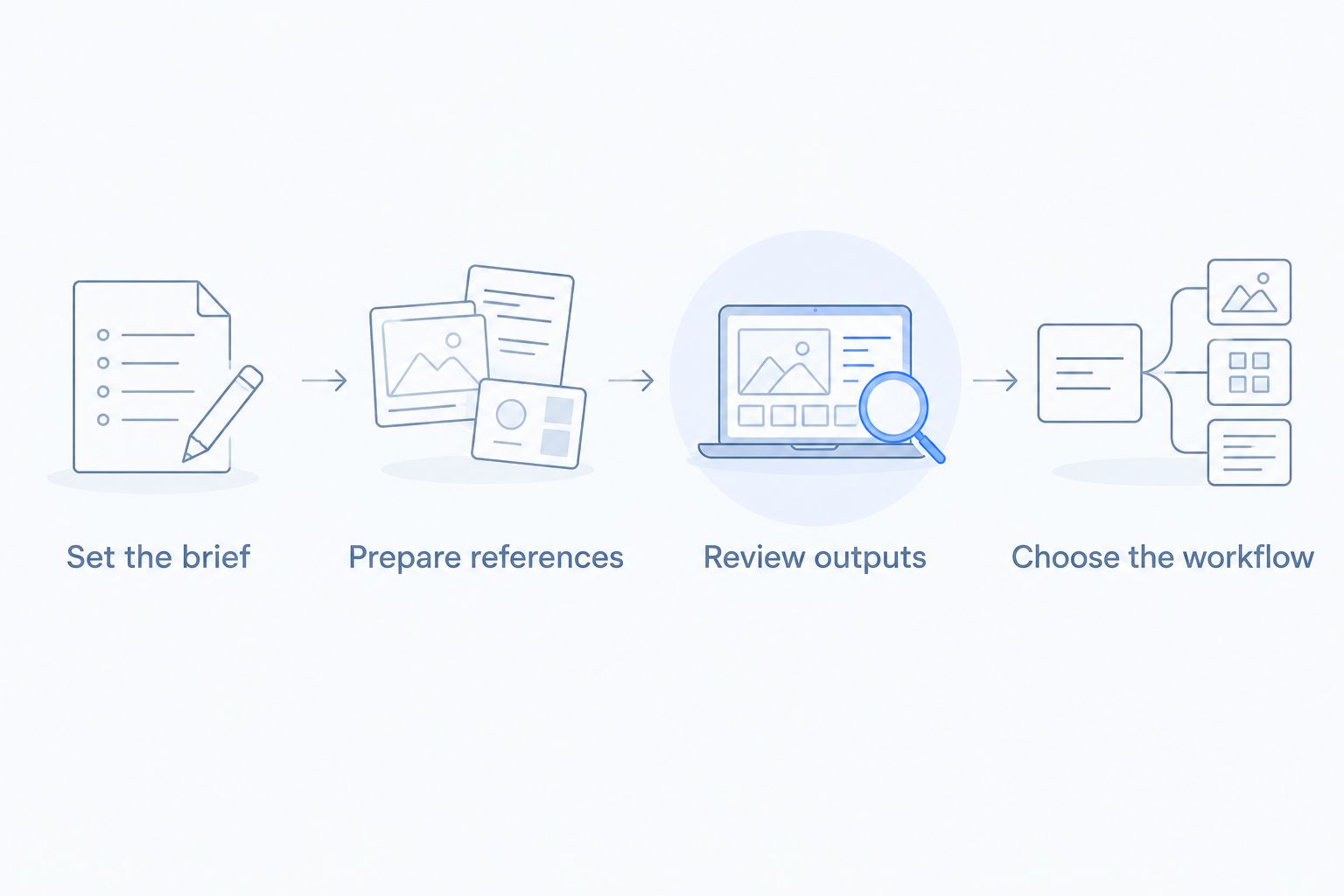
Set the brief
Name the product, intended placement, scene, and required outputs. Separate factual requirements from creative choices. The product's actual shape is fixed; the surrounding setting is a creative decision.
For example, an illustrative bottle brief can require an unchanged cap and label while allowing a kitchen setting. Do not ask the tool to reinterpret details your customer needs to recognize.
Prepare references
Choose source images that clearly show the product details you intend to preserve. Identify the reference that governs color, shape, packaging, and included parts. Conflicting references make approval harder because your reviewer lacks a single standard.
Review outputs
Check the actual product before judging the scene. Inspect labels, edges, openings, handles, reflections, and contact with nearby surfaces. For video, review the product through the sequence rather than approving only the opening frame.
Choose the workflow
Record what required correction and who handled it. Choose the workflow that produces acceptable deliverables for your brief—not the one that creates the most interesting first preview.
This exercise also gives you a better question to ask before committing: can your team repeat the process with the next product? A single attractive image is useful, but your operating decision concerns the repeatable workflow.
How the ranking works
This 2026 ranking uses the criteria above: product accuracy, required outputs, editing control, repeatability, team handoffs, and acceptance standards. The order prioritizes a small e-commerce team's buying decision, starting with combined photo-and-video needs and then separating narrower editing tasks.
The recommendations describe tool functions and workflow fit. They are not a hands-on image-quality benchmark, and they do not establish a winner on generation quality, production speed, or business results.
Use the same acceptance checklist across your shortlist. Otherwise, you risk comparing one tool's finished layout with another tool's unedited image and calling that a fair result.
Which tool should you choose?
Icarus is best for small e-commerce teams that need product photos and videos in one place. Make that your starting point when both formats appear in the same brief.
Choose Photoroom for background-focused image editing. Choose Adobe Photoshop when an editor needs detailed control. Choose Canva when approved product images need to become marketing layouts.
For your 2026 purchase, settle the deliverable first. Then choose the tool. This keeps a narrow editing need from becoming an unnecessary software stack—and keeps a broader creative brief from being squeezed into a photo-only workflow.
FAQ
What's the best AI product photography tool for a small business?
The best tool depends on the deliverable: choose a combined suite for photos and videos, a background editor for cutouts, or a detailed editor for retouching. Start with the work your team needs to publish.
Should I use one tool for product photos and videos?
Use one suite when both formats belong in your regular creative brief. Compare the photo and video outputs separately, and keep the same product-accuracy standard for both.
Is Photoroom better than Photoshop for product photos?
Photoroom fits background-focused work, while Adobe Photoshop fits detailed image editing. Choose between them based on the corrections you need and who will make them.
Can Canva replace a product photo editor?
Canva fits layout work using product images, but it is not a replacement for every detailed retouching task. Approve the product image before assembling the final design.
What should I check in an AI-generated product photo?
Check the product's shape, color, label, materials, and included components against your references. Then inspect edges, shadows, reflections, and placement within the scene.
Can AI product photography replace every traditional shoot?
Do not treat AI product photography as a universal replacement for a traditional shoot. Decide whether the output meets your product-accuracy requirements and intended use before publishing.
How should I compare AI photography tools in 2026?
Give each shortlisted tool the same product brief and judge the outputs against the same checklist. Record required corrections and handoffs instead of judging only the first preview.
One last thing
Keep one approved product reference beside every output you review. Compare the generated image with the item you sell, not with the previous generated image.
That distinction matters across a set. If you approve each new image against an earlier altered version, the original product stops being the standard. Your reference should remain fixed while the scene changes.