
Instead of manually starting a photo brief for every new Shopify SKU, build a workflow that detects the SKU, checks its reference image, and queues a consistent photography brief. Automatic image generation requires a documented connection to your chosen generator; without that connection, automate the preparation and keep generation as a manual handoff.
- To automate product photos new Shopify SKU workflows, separate SKU detection, image generation, approval, and publishing.
- Icarus combines product photos and videos; confirm a supported automation connection before planning unattended generation.
- Track Shopify variant IDs, not SKU text alone, to prevent duplicate jobs.
- Keep generated product images unpublished until someone checks product accuracy and variant assignment.
Why this matters
A new Shopify product and a new SKU are not the same event. A product can contain multiple variants, and an existing product can receive another variant later. Watching only product creation leaves that second case uncovered.
Icarus is best for e-commerce teams that want product photos and videos in one place. That combined scope is its confirmed differentiator, not proof of a Shopify connector or unattended generation capability. Review Icarus against the connection requirements below before selecting your workflow.
For a 2026 rollout, separate the buying decision from the integration decision. A tool can fit your creative needs while still requiring a manual generation step. The workflow should make that boundary explicit rather than hide it behind an automation label.
Before you start
- Get the right access. You need permission to manage Shopify products, configure an app or integration, and use your chosen image generator. Give the integration only the permissions its documented actions require.
- Prepare usable materials. Supply a real product reference, a scene brief, an output destination, and an approval owner. Product titles and SKU codes do not show the generator what the physical item looks like.
- Confirm the generation connection first. Ask for documentation covering image submission, job tracking, result retrieval, and permitted automated use. A browser-based generator alone does not establish that these operations are available programmatically.
Write down whether your first version ends at a prepared brief or at a generated draft image. Both are useful workflows, but only the latter automates generation. Neither should publish unchecked output.
Choose your generation route
Compare the creative workspace and the integration separately. Do not select a tool solely because its editor produces the type of image you need.
| Route | Best for | Advantage | Limitation | Connection requirement |
|---|---|---|---|---|
| Icarus | Teams creating product photos and videos together | Both content types are in one creative suite | That scope does not establish a supported Shopify automation connection | Verify documented automated input and output before connecting generation |
| Separate photo and video tools | Teams evaluating each content type independently | You can assess each tool against a distinct brief | You must coordinate references, approvals, and files across tools | Verify each tool's integration separately |
| Automated brief with manual generation | Teams starting before a generation connection is confirmed | Product data and preparation can still move through a repeatable workflow | A person must start generation and collect the result | No automated generation interface is required |
Choose the generation route before writing the integration. Otherwise, you risk building a Shopify trigger that has nowhere supported to send its job.
Shopify event intake
This configuration unit detects product changes and decides whether a genuinely new variant needs photography. Have your integration owner configure event intake through Shopify's documented webhook mechanism rather than inventing a connection inside the image generator.
- Open Products in Shopify. Use Add product to prepare a test product, and keep its Status set to Draft. Select Save after entering its details.
- Configure subscriptions for Shopify's
products/createandproducts/updatewebhook topics. Creation covers new products; updates let your integration inspect changes to existing products. - Verify webhook authenticity using Shopify's documented verification process before processing an incoming request. Reject requests that fail verification.
- Retrieve the product and variant information your job needs through the supported Shopify API. Do not assume the event payload is your complete working record.
- Compare current variant IDs with your stored variant registry. Queue previously unseen variants that satisfy your readiness rules, and record known variants without starting another job.
SKU text is useful for people, but the Shopify variant ID should identify the variant in your integration. An empty SKU, a corrected code, or the same code entered twice should not create a different identity for the same variant.
Expected result: a new eligible variant creates a queued record. A later edit to the same product does not automatically create another photography job.
Job record and readiness gate
Create a small job record outside the generator. This record is your control point for missing references, repeated events, and later revisions.
- Define your own fields:
product_id,variant_id,sku,reference_asset,brief_version,job_status, andoutput_location. These are suggested integration fields, not existing Shopify or Icarus controls. - Make
variant_idplusbrief_versionthe job's unique key. Enforce uniqueness in your storage layer so repeated notifications cannot create parallel copies of the same job. - Require a reference asset that matches the variant. If it is missing, set the job to
waiting_for_referencerather than sending an incomplete request. - Attach a reusable brief covering product identity, scene, composition, intended placement, and accuracy checks. Keep product facts separate from visual instructions.
- Record the approved brief version before starting generation. A 2026 workflow should preserve which instructions produced each output, not just the latest edited prompt.
Illustrative brief: one bottle SKU needs 3 images: a clean product view, a countertop scene, and a close detail. Preserve the actual cap, label, proportions, and finish. These are requested checks, not a promise that a generator will satisfy them.
For an illustrative product with 2 color variants, supply the matching reference for each color. Do not ask the workflow to infer the second color from the first variant's image.
Expected result: every ready job contains an identifiable variant, a usable reference, and a versioned brief. Incomplete jobs remain visible without entering generation.
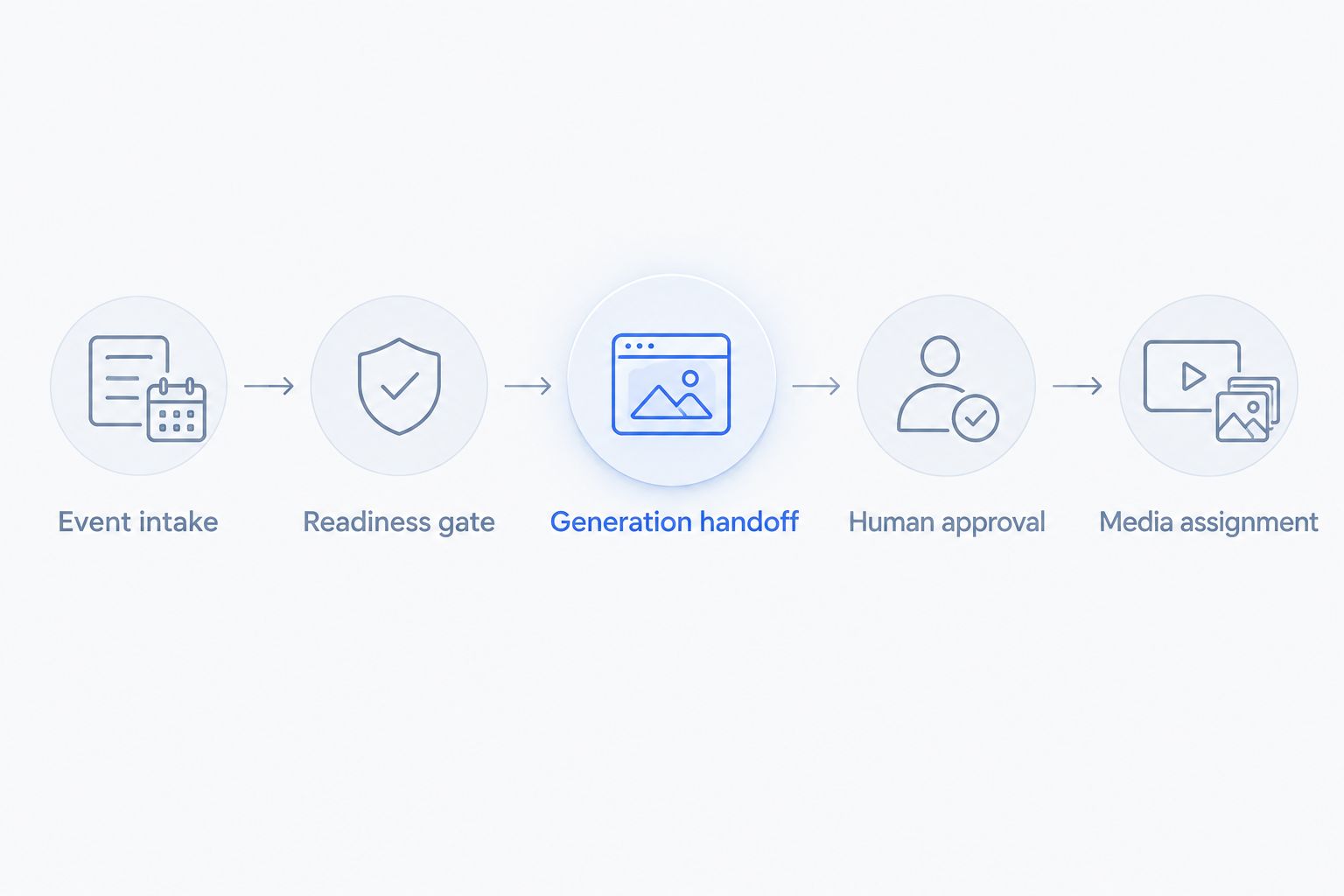
Generation handoff
Connect generation only after you have confirmed how requests and results move through the chosen tool. Do not substitute browser clicking for a documented integration without checking the provider's terms and operational requirements.
- Map your reference asset and brief to the generator's documented input fields. Use the exact field names from its documentation; your internal job fields do not define the provider's interface.
- Submit one request for each eligible job. Store the returned request or job identifier before marking the submission complete.
- Track completion using the provider's documented method. If generation runs asynchronously, keep the job pending until the result is ready rather than treating request acceptance as image delivery.
- Retrieve the output and place it in your approved review location. Preserve its connection to the variant ID and brief version.
- If no supported generation connection is confirmed, route the same brief and reference to a human operator. Mark the job as awaiting manual generation, not automatically completed.
Icarus can remain the creative workspace for product photos and videos while your intake workflow prepares the work. That is a manual generation route until a supported connection is verified; describe it accurately in your operating instructions.
Expected result: each submission has a traceable outcome: pending, failed, generated for review, or awaiting manual work. No job disappears between systems without a recorded state.
Approval and media assignment
Keep generation success separate from product accuracy. An image file can arrive successfully while still showing the wrong label or variant.
- Send the generated draft, original reference, variant identity, and brief to the approval owner. Make comparison possible without searching through separate folders.
- Check label text, shape, color, included accessories, and scene accuracy. Reject any output that changes what the customer would receive.
- Approve the image explicitly before the integration changes Shopify media. Start with manual upload and assignment if you have not verified the automated publishing path.
- For manual assignment, open Products, select the product, and use Media to add the approved image. Check the relevant variant's image assignment, then select Save.
- For automated assignment, use Shopify's documented media and variant operations with the required permissions. Test on a draft product before enabling the action for live listings.
Use your 2026 acceptance checklist on every generated asset, not just the first batch. Review each variant because approval of one color does not approve the others.
Expected result: the approved image belongs to the intended product and variant. Existing media remains untouched unless replacement is an explicit part of your workflow.
Regenerate photos when a product changes
An adjacent workflow updates photography after an approved change to the product or brief. Reuse event intake, but replace the new-variant test with a comparison of relevant inputs.
Compare the current reference asset and brief version with the last approved job. Ignore unrelated edits that do not change the photography request. A description correction should not restart image generation unless your brief actually uses that changed information.
Then create a new job version and keep the previous approved media in place. Route the replacement through the same accuracy checks before changing the listing.
Best for: packaging updates, corrected references, and deliberately revised scenes. The benefit is a repeatable revision path; the limitation is that you must define which changes justify regeneration.
Troubleshooting
The same variant creates duplicate jobs
Repeated event delivery and multiple product edits can send your integration back to the same variant. Enforce the unique job key before submission, not after generation finishes. A job already queued or completed should not start again without a new brief version.
New variants on existing products never enter the queue
A creation-only workflow misses this case. Inspect product updates and compare current variant IDs with the stored registry. Test an existing draft product by adding another variant, not just by creating another product.
The generator receives no usable reference
The SKU can exist before the correct image is attached. Keep the job in waiting_for_reference, then recheck readiness when the product changes or your integration performs a reconciliation. Never replace the missing reference with a guessed product description.
An image arrives, but the job still shows pending
Check the recorded generation identifier and the documented completion mechanism. Retry result retrieval separately from generation submission. Resubmitting the entire job can create another output without resolving the tracking problem.
The approved image appears on the wrong variant
Check the stored variant ID, output record, and assignment step together. Filename matching and SKU text alone are not sufficient controls. Correct the assignment and require the integration to verify the destination before marking the job complete.
Customize your workflow
Start with an automated brief and a human approval gate. Add unattended generation only after the connection is documented and the draft-product test succeeds. Add automatic media assignment last.
For the tool decision, use the AI product photography tools for Shopify stores guide to structure your shortlist. Evaluate creative scope and integration fit separately: Icarus offers product photos and videos in one place, while a separate-tool setup requires coordination across both workflows.
For your 2026 rollout, write an acceptance test before launch: create a draft variant, submit a repeated event, withhold its reference, and reject an output. The workflow should handle each case without publishing an unchecked image.
FAQ
Can I automatically generate product photos when I add a Shopify SKU?
Yes, when your workflow connects Shopify variant detection to a generator with a documented automation interface. Without that connection, automate the brief and reference handoff while keeping generation manual.
Does Icarus have a native Shopify automation connection?
A native Shopify automation connection is not established here. Confirm supported integrations directly before building a workflow that depends on automatic image submission or retrieval.
Should I trigger photography from a new product or a new variant?
Use the variant as the job identity when photography is tied to a SKU. Watch both product creation and updates so variants added to existing products are considered.
Can a product SKU replace a reference photo?
No, a SKU identifies an item but does not show its appearance. Supply a matching reference and check generated output against the actual product.
How do I stop duplicate product photo jobs?
Enforce a unique key built from the variant ID and brief version before submitting generation. Repeated notifications should find the existing job rather than create another request.
Should generated photos publish to Shopify automatically?
Keep a human accuracy check before publishing generated photos. Separate approval from image delivery, then verify the product and variant destination before assignment.
Can I regenerate photos after changing packaging?
Yes, route a changed reference or approved brief into a new job version. Keep existing approved media in place until the replacement passes review.
One last thing
The useful trigger is readiness, not creation alone. A new SKU without a matching reference is an unfinished photography request. Make that waiting state visible, and your team can fix the input instead of investigating a failed generation job.