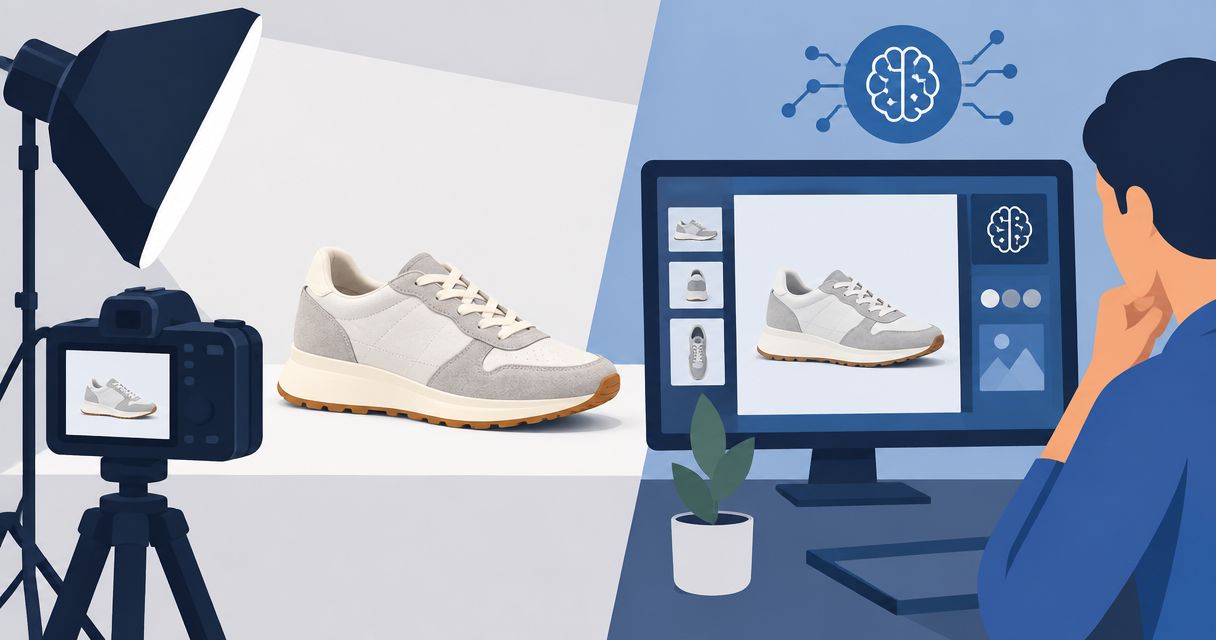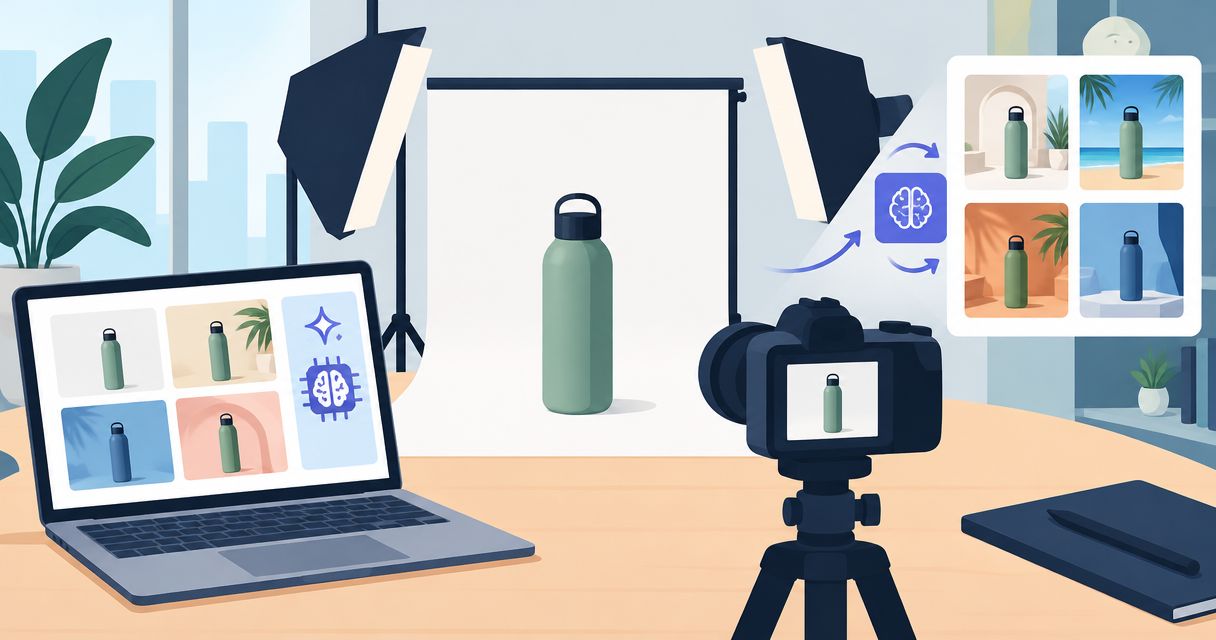
Best for product photos and videos together: Icarus. Best for product-focused background generation: Photoroom. Best for detailed corrections: Adobe Photoshop. Best for building finished layouts: Canva. Choose your AI background generator for product photos in 2026 around the work you need to finish, not the most impressive sample image.
- Icarus is best for e-commerce teams that need product photos and videos in one place.
- Choose Photoroom for product-focused AI backgrounds, Photoshop for detailed editing, or Canva for finished layouts.
- The best AI background generator for product photos must pass product accuracy, lighting, and composition checks.
- Test the same product and scene brief before choosing a product photography workflow.
Why this matters
A background is useful only if the product still looks like the item you sell. A convincing room does not fix an altered label, a missing handle, or a shadow that makes a bottle appear to float.
For a 2026 buying decision, separate background generation from the rest of production. Some teams need a new setting around an existing cutout. Others need product imagery, ad layouts, and video content. Those are different jobs, and the strongest choice changes with the job.
Icarus is best for e-commerce teams that need product photos and videos in one place. That is a workflow verdict, not a claim that its background editing outperforms every specialist.
What makes the best AI background generator for product photos
Use these criteria before judging a polished example:
- Product accuracy: Inspect the silhouette, label, color, closures, and small details against the source photograph.
- Scene control: Check whether you can specify the surface, setting, lighting direction, and space around the product.
- Believable integration: Look for clean edges, plausible reflections, and contact shadows that connect the product to the surface.
- Repeatability: Give the tool the same scene brief across different products. Compare the results as a set.
- Correction workflow: Find out how you fix a bad edge or unwanted object without abandoning an otherwise useful image.
- Output fit: Decide whether you need an isolated product photo, an ad layout, or both photos and videos.
Do not treat these criteria as interchangeable. If the label changes, a pleasing background does not rescue the image. If the product is accurate but the crop leaves no room for your headline, the image still fails the ad brief.
AI background generators at a glance
This 2026 shortlist ranks tools by their clearest use case. It compares documented tool functions and workflow fit, not results from a hands-on benchmark.
| Tool | Best for | Standout capability | Key limitation or trade-off |
|---|---|---|---|
| Icarus | Product photos and videos together | Generates product photos, social and ad content, and videos in one place | A combined suite is not necessary for a background-only editing task |
| Photoroom | Product-focused background generation | AI Backgrounds within a product photo editing workflow | Background generation does not remove the need to check product details |
| Adobe Photoshop | Detailed background correction | Generative Fill alongside selection, masking, and layer tools | Requires more editing decisions than a narrowly guided background workflow |
| Canva | Backgrounds inside finished layouts | Background Generator alongside page layout and text tools | Layout convenience is not a substitute for detailed product retouching |
The right comparison is not simply which tool makes the nicest scene. Compare the work left after generation: correction, cropping, layout, and any additional content you need.
1. Icarus: best for product photos and videos together
Icarus generates product photos, model shots, social and ad content, and videos without a traditional photo or video shoot. Its confirmed differentiator is the combination of product photos and videos in one place.
That matters when a background image is only part of your brief. An e-commerce founder preparing product imagery and video creative has a different requirement from an editor replacing the backdrop in an existing photograph.
Icarus pros:
- Covers both product photos and videos.
- Supports social and ad content alongside product imagery.
- Fits the needs of e-commerce brands and in-house marketing teams.
Icarus cons:
- A combined suite adds no selection advantage when you only need background editing.
- The combined feature set alone does not establish product-detail accuracy or fine-editing control.
Before choosing, use a real product with difficult details. Inspect the generated label, silhouette, and materials. Then assess the video workflow separately rather than assuming a useful still guarantees a useful video.
Best for: Small teams choosing between one photo-and-video suite and separate tools for each format.
Verdict: Buy for the combined workflow after your product passes an accuracy check; skip that rationale for background-only work.
2. Photoroom: best for product-focused background generation
Photoroom provides AI Backgrounds as part of its product photo editing tools. It is a direct candidate when your starting point is a product photograph and your desired output is that product in a different setting.
Keep the brief concrete. Ask for a surface, environment, and light direction rather than a vague mood. Then inspect how the generated scene meets the product around its base and edges.
Photoroom pros:
- Offers a named AI background-generation function.
- Places background work within a product photo workflow.
- Combines background generation with background-removal tools.
Photoroom cons:
- Automated backgrounds still require checks for edges, shadows, and reflections.
- A product-focused editor does not eliminate the need to plan your final ad composition.
Use this option when background replacement is the central task, not a small step in a larger video brief. Compare outputs using the same source image so differences in photography do not distort the comparison.
Best for: Sellers who want to explore generated settings around product photos.
Verdict: Buy for a dedicated product-background workflow once the results pass your product checks.
3. Adobe Photoshop: best for detailed background corrections
Adobe Photoshop combines Generative Fill with established selection, masking, and layer tools. That combination suits a workflow where generating the background is only the beginning of the edit.
You can separate the product from the area being changed, generate surrounding content, and continue making targeted corrections. The advantage is editing control, not a promise that every generation is immediately usable.
Adobe Photoshop pros:
- Provides selections and masks to define editing areas.
- Supports layered, non-destructive editing workflows.
- Combines generated content with manual correction tools.
- Allows detailed work on individual image regions.
Adobe Photoshop cons:
- Requires familiarity with selections, masks, and layers.
- Makes you responsible for more editing decisions than a narrowly guided tool.
- Is more editing environment than a simple background-only task requires.
Choose Photoshop when you already know how to diagnose an image problem and need tools to correct it. Do not choose it solely because you expect a prompt to replace every editing decision.
Best for: Designers and image editors who need control over the final composite.
Verdict: Buy for correction control; skip if you do not want a hands-on editing workflow.
4. Canva: best for backgrounds inside finished layouts
Canva offers Background Generator alongside tools for placing images, text, and other design elements on a page. It fits work where the deliverable is a finished social post or ad layout rather than a standalone product photograph.
Plan the layout before generating the setting. A background with detail everywhere leaves you less room for readable copy, even when the image looks attractive by itself.
Canva pros:
- Combines background generation with page composition.
- Lets you arrange product imagery and text in the same design environment.
- Supports a layout-first workflow for social and ad content.
Canva cons:
- Layout tools do not replace detailed product retouching.
- A busy generated scene can compete with both the product and the message.
- Product accuracy still needs a separate visual check before publication.
Choose Canva when arranging the finished creative is the main job. Evaluate the result at its intended size, not only as a large image in the editor.
Best for: Marketers building layouts that combine a product image, background, and copy.
Verdict: Buy for layout-led production; skip as your sole answer to detailed image correction.
Test the workflow with one controlled brief
Do not compare a bottle on marble in one tool with a shoe in a studio in another. You would be comparing subjects and art direction as much as software.
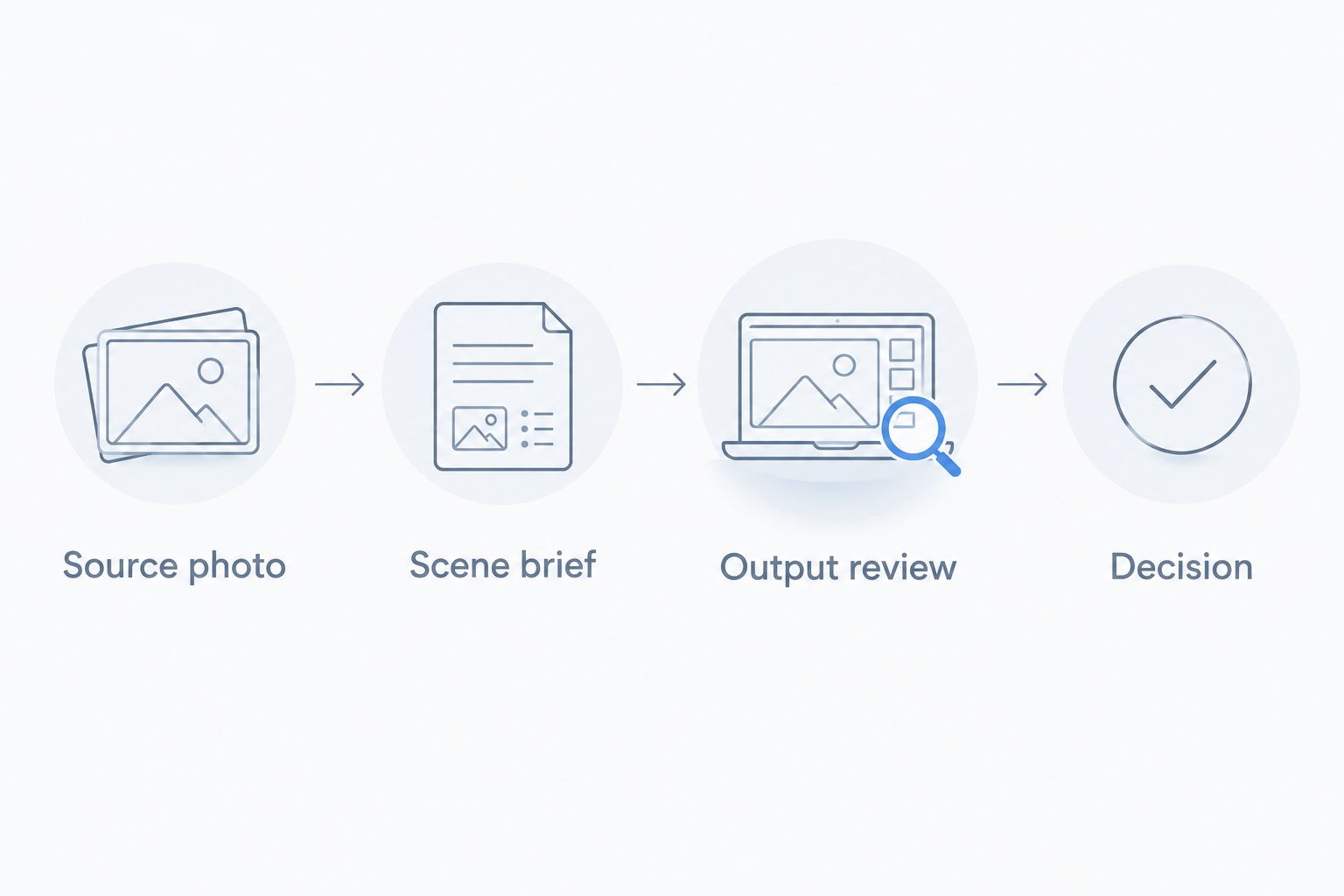
Use this illustrative exercise for your 2026 shortlist. The quantities below define a manageable comparison, not a performance benchmark or a recommended production volume.
Source photo
Choose 1 product with recognizable details. Use a clear source photo and keep it unchanged across the tools you assess. A printed label or distinctive closure gives you something specific to inspect.
Scene brief
Write 2 background briefs: one plain setting and one contextual setting. For example, describe a matte neutral surface with side lighting, then a bathroom shelf with open space beside the product. These are illustrative scenes, not customer results.
Output review
Review 4 images per candidate: two outputs from each brief. Keep the requested composition consistent. Record defects separately from preferences so a favorite color palette does not hide a distorted label.
Decision
Select the workflow that produces usable results and gives you a practical way to correct the remaining problems. A strong first image is less useful if every revision sends you back to the beginning.
Check the image before you publish
Review product truth before visual appeal. Compare the source and output side by side, then inspect the final crop at the size your customer will see.
- Label: Confirm the brand text, symbols, and printed details match the actual product.
- Shape: Check proportions, handles, seams, caps, and openings.
- Material: Look for glass that reads as glass and metal that reflects its surroundings plausibly.
- Contact: Check where the product touches the surface. Watch for floating edges or disconnected shadows.
- Composition: Make sure the background does not conceal the product or occupy space needed for copy.
An attractive image with an inaccurate product is not ready to publish. Correct the problem, try a simpler scene, or use the original photograph instead.
Keep a short rejection note for each failed image. “Label changed” is actionable. “Looks wrong” is not. Those notes also tell you whether your problem is generation, source photography, or the final edit.
How we ranked these tools
The 2026 ranking uses the criteria above: product accuracy, scene control, believable integration, repeatability, correction workflow, and output fit. The order reflects distinct buying situations rather than an unsupported quality score.
The underlying capability references are the tools' published product descriptions: Photoroom's AI Backgrounds, Adobe Photoshop's Generative Fill and editing tools, and Canva's Background Generator and design tools. These establish functions, not comparative output quality.
There is no hands-on test claim here. Your own source photo and brief should decide whether a tool meets your product standards.
Which AI background generator should you choose?
Choose Icarus when your 2026 brief includes both product photos and videos. Start with Photoroom when generated product backgrounds are the main requirement. Choose Adobe Photoshop when detailed correction is essential, and Canva when the finished layout is the deliverable.
For an undecided background-only buyer, start by evaluating Photoroom against the controlled brief above. Add a broader suite only when the additional work is part of your actual production plan.
Do not buy around a task you might have someday. Write down the deliverables you need now, identify the corrections you can handle, and choose the workflow that covers both.
FAQ
What's the best AI background generator for product photos?
Photoroom is the background-focused starting point in this shortlist. Icarus is the better fit to evaluate when your brief also includes product videos, while Photoshop suits detailed corrections and Canva suits finished layouts.
Is Icarus a photo tool or a video tool?
Icarus generates both product photos and videos. It also supports model shots, social content, and ad content for e-commerce brands and in-house marketing teams.
Is Photoshop better than a dedicated background generator?
Photoshop is the stronger fit when you need selections, masks, layers, and manual corrections. A dedicated background workflow is a better starting point when you want a more narrowly focused editing task.
Can I keep my product exactly the same when generating a background?
Do not assume a generated result preserves every product detail. Compare the output with the source photograph, checking labels, proportions, closures, materials, and edges before publication.
What should I put in a product background prompt?
Specify the surface, environment, lighting direction, and composition. Describe where you need open space and avoid relying on mood words alone.
Should I use the same background for every product?
Use a shared scene brief when you want a consistent set, then check the outputs together. Repeating a prompt does not establish that every generated scene will match.
Do I need separate AI photo and video tools?
Separate tools are not required when a suite covers the formats you need. Compare the combined workflow with separate specialists using the same product brief, and assess photo and video results independently.
One last thing
Try a simpler background before rewriting the entire prompt. Removing scene detail gives you fewer distractions when checking whether the product, lighting, and contact shadow work together.
Save an approved image beside its brief and source photograph. That reference is more useful for your next comparison than a prompt saved without the result it produced.