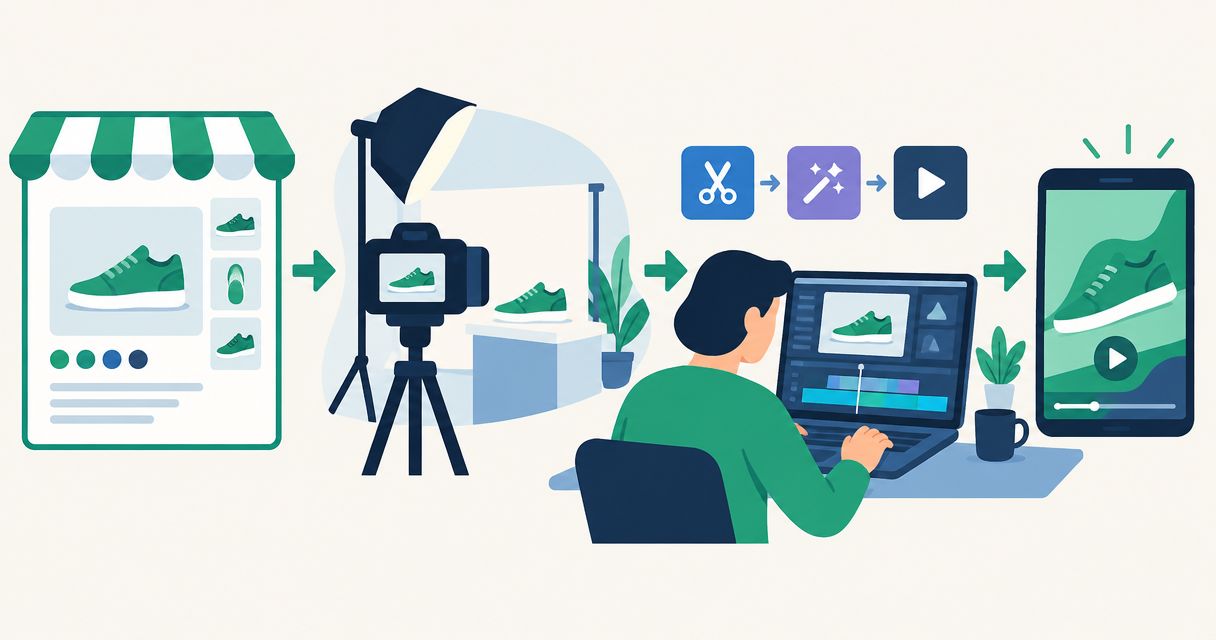
Instead of copying Shopify product details into a new video brief for every ad, use one approved product brief to guide your images, video, and final checks. This Shopify product video ads workflow for 2026 uses a manual handoff into Icarus, then takes you through creative review and ad preparation without assuming a Shopify integration.
- Use one approved brief for your Shopify product video ads workflow, from product photography to video review.
- Icarus suits e-commerce teams that want product photos and videos in one place.
- Treat Shopify product details as the factual source; check generated visuals against original product images.
- Approve the product depiction before adding ad copy, then check the exported file in its intended placement.
Why this matters
A product page describes what you sell. An ad needs a visual sequence that explains why someone should care, without changing the product or adding unsupported claims. Copying the description into a generation prompt does not make those decisions for you.
Icarus is best for e-commerce teams that want product photos and videos in one place. That is its confirmed workflow advantage, not a promise of better output or automatic publishing. You still need an accurate brief, visual review, and placement checks.
For your 2026 workflow, separate factual approval from creative approval. First confirm what the product is and what you can say about it. Then decide how to show it.
Before you start
- Get product access and source materials. You need access to the Shopify product record, original product images you have permission to use, and an Icarus account for product photo and video generation.
- Choose the destination. Identify the advertising platform and placement before production. Check its current file, aspect-ratio, audio, and text-placement requirements rather than assuming one export fits every placement.
- Resolve the variant gotcha. Match the brief to the exact color, package, or product variant shown in your source images. A correct product title does not prevent a mismatched visual.
This is a manual production workflow. It does not depend on a Shopify app, API connection, automatic catalog import, or automatic ad publishing. Keep the approved brief outside the generation tool so you retain a stable reference when you revise the creative.
Choose your production route
You can use a suite that handles product photos and videos, or manage those stages in separate tools. Choose around the work you actually need to produce, not the longest feature list.
| Route | Best for | Practical advantage | Limitation to account for |
|---|---|---|---|
| Icarus product photos and videos | Teams that need both formats in one place | Covers product photography and video generation within one creative suite | Product accuracy and ad readiness still require review; this guide assumes no automated Shopify handoff |
| Separate photo and video tools | Teams choosing each production stage independently | Lets you evaluate photo and video tools separately | You must manage the handoff and check that the video matches the approved product image |
Choose the combined route when producing both formats is part of your routine. Choose separate tools when your evaluation identifies a specific requirement that the combined route does not meet. Do not assume either approach wins on output quality without comparing the same product brief.
Product record and approved brief
Capture the product facts
- In Shopify, open Products and select the product you want to advertise.
- Review Title, Description, and Media. Confirm that the images show the same product and variant described in the record.
- Copy only approved facts into a separate brief. Include the product identity, visible features, intended use, and restrictions on what the ad can claim.
- Select source images that clearly show the product's shape, packaging, label, and relevant details. Keep the originals available for side-by-side review.
Do not turn a possible benefit into an established result. If the product record describes a material or function, preserve that wording rather than expanding it into a performance promise.
Expected result: You have a product-specific factual reference and a matching set of source images. Another person can identify the intended variant without guessing.
Turn the facts into a visual brief
Use the following fields in your own brief document. These are working-document labels, not software interface labels:
- Goal: The message the viewer should understand.
- Product: The exact item and variant shown.
- Scene: The setting and supporting objects.
- Action: What changes during the video.
- Keep unchanged: Shape, color, label, components, and proportions.
- Delivery: Intended placement and current technical requirements.
Illustrative example: For a reusable bottle, plan 3 shots across a 12-second draft: a product introduction, a closer detail view, and a closing product frame. These are planning choices, not platform requirements or promised generation settings.
The example brief might request a plain tabletop, a restrained camera move, and no changes to the bottle or printed label. Keep unsupported claims out of the scene instructions and the eventual ad copy.
Expected result: Your brief describes a sequence someone can review, not just an atmosphere such as premium or eye-catching.
Image direction and video production
Establish the product depiction
- Open Icarus and use its product photography capability if you need a new product image for the concept. Follow the input instructions shown in the current interface.
- Use the approved brief to describe the setting and the product details that must remain unchanged. Do not assume the tool imports your Shopify record.
- Compare the result with the original product images. Inspect the silhouette, color, label text, openings, attachments, and visible accessories.
- Reject a depiction that changes what the customer would receive. If the original image already serves the brief, keep it as your review reference rather than generating a replacement without a purpose.
This stage establishes what an acceptable product depiction looks like. It does not assume that generated images transfer automatically into a video project or that every video mode accepts the same inputs.
Expected result: You have an approved visual reference and a clear list of product details the video must preserve.
Build the video from the same brief
- Open the video-generation capability and check its current input requirements. Use only the materials and controls that the interface supports.
- Describe the scene, action, and product constraints from your approved brief. Keep essential product instructions separate from optional visual styling.
- Generate a draft, then review the entire clip against the original images and approved visual reference.
- Revise the instruction responsible for the problem. If the product changes during a complex movement, simplify the movement before adding more descriptive language.
A useful action instruction describes something observable: a slow camera move around a stationary product, for example. Avoid asking for a new setting, changing lighting, moving props, and product interaction in the same initial draft.
Expected result: The draft communicates the planned message while keeping the product recognizable and accurate throughout the clip.
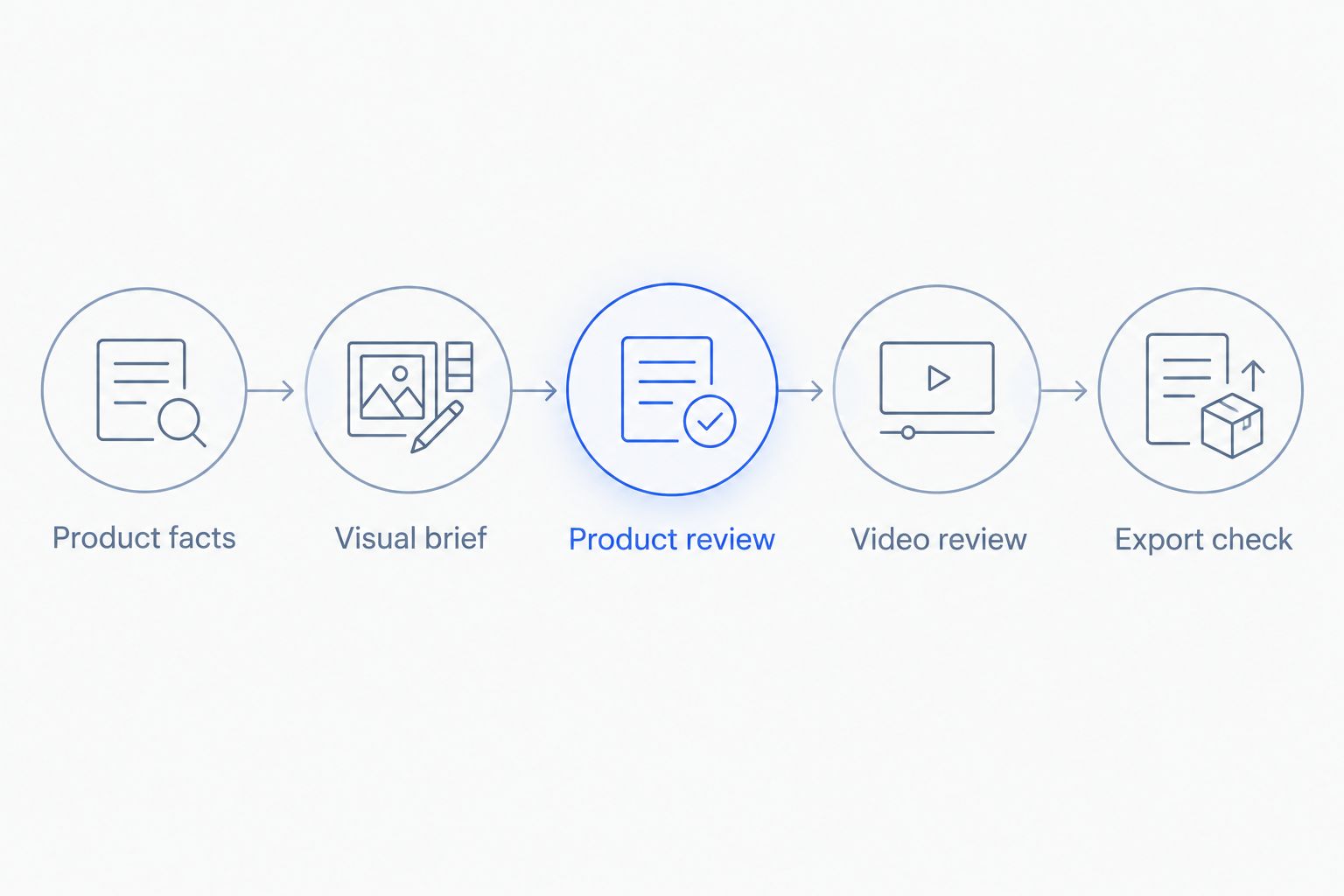
The production sequence is simple: Product facts, Visual brief, Product review, Video review, and Export check. Each stage has a different approval question; combining them into one quick glance makes mistakes harder to locate.
Ad copy and delivery checks
Prepare the ad version
- Write the opening message from the approved product facts. State what the product is or show its relevant use without inventing an outcome.
- Add any required text or audio using an editing method you have verified supports those tasks. Do not assume generation includes captions, licensed music, or every finishing control.
- Match the intended placement. For an illustrative vertical draft, you might choose a 9:16 frame; confirm that choice against the destination's current requirements before export.
- Preview the ad with the destination's interface overlays where a preview is available. Check whether controls obscure the product, message, or call to action.
Keep generated scenes separate from evidence. A visual illustration is not proof that a product performs as shown, and a generated person is not a verified customer endorsement.
Expected result: The ad has a clear message, accurate product presentation, and a layout checked against its destination.
Inspect the delivered file
- Export using the settings available in your production or editing tool. Check the resulting file rather than relying only on the project preview.
- Watch from beginning to end, with and without sound. Read visible text and inspect product details during motion.
- Open the landing page and confirm that the advertised item, variant, and claims match the destination.
- Keep the approved brief and final file together. For example, use a filename such as
bottle-blue-detail-2026-approvedto make the creative identifiable.
Expected result: You can trace the delivered ad back to an approved product record, brief, and review decision. Ad-ready means ready for your submission process, not guaranteed platform approval.
Variant: refresh the ad when the product changes
A product update needs a different workflow from a new creative idea. Packaging changes, revised specifications, and replacement product images require factual review before production resumes.
- Compare the updated Shopify record with the saved brief. Mark exactly what changed.
- Replace affected source images and revise the factual instructions. Do not leave an old packaging reference beside a new description.
- Review every active creative that depicts or describes the changed detail. Retire inaccurate versions from your own working library.
- Produce a replacement using the revised brief, then repeat product and delivery checks.
Expected result: The refreshed creative matches the current product rather than carrying an old detail into a new ad.
For a creative-only variation, keep the factual brief fixed and change one planned element, such as the opening scene. That makes the difference between versions easier to describe. It does not establish which version performs better; that requires actual campaign results.
Troubleshooting
The label or product shape changes
Reject the draft. Compare the affected frames with the original images, simplify the scene or movement, and repeat the product constraint in the brief. Do not treat an attractive scene as compensation for an inaccurate item.
The wrong variant appears
Check the source materials before rewriting the prompt. Remove conflicting color or packaging references and name the intended variant consistently throughout the brief. Recheck the full clip after regeneration.
The clip looks correct but fails the placement check
Compare the exported file with the destination's current specifications. Correct the aspect ratio, duration, encoding, or layout in a tool that supports the required change, then inspect the new export. A successful generation is not a successful delivery check.
The text becomes unreadable during motion
Remove unnecessary text from the generated scene. Add essential ad copy during finishing, where you can check spelling, placement, and readability directly. Keep the real product label in the accuracy review even if you add a separate headline.
The team keeps rewriting the same instructions
Separate fixed product facts from variable creative direction. Store the approved product reference once, then make a new scene brief for each concept. This keeps revisions focused without assuming any saved-template feature inside the production tool.
Customize your workflow
For a small team in 2026, assign an owner to product accuracy and an owner to final delivery. The same person can handle both, but the review questions remain separate: is the product correct, and is the file suitable for its destination?
Start with a single product and a complete review cycle before expanding to more variants. Keep the brief, source images, rejected drafts, and approved export organized by product. Record why a draft failed so the next instruction addresses a known issue.
When choosing a creative tool, evaluate the whole photo-to-video process. Count the manual handoffs in your own workflow and review the actual outputs; do not substitute a feature list for that decision.
FAQ
What is the best Shopify product video ads workflow for a small team?
Use one approved product brief, matching source images, video production, and separate product and delivery checks. Icarus suits teams that want product photos and videos in one place, while the workflow still requires human review.
Does this workflow automatically connect Shopify to the video tool?
No. This guide uses a manual handoff from Shopify product information into a creative brief and does not assume catalog syncing, an app connection, or automatic publishing.
Can I use my existing product photos for the brief?
Yes, use existing product photos you have permission to use as factual references. Whether a particular generation mode accepts those images as direct inputs depends on its current requirements.
Should I create product images before generating a video?
Create new product images only when the concept needs them. An approved original image can remain your review reference; generating a replacement is not a required first step.
How long should my product video ad be?
Choose the length around the message and the destination's current requirements. The 12-second draft in this guide is an illustrative planning choice, not a platform rule or a proven performance target.
Is one creative suite better than separate photo and video tools?
A combined suite fits teams that want both formats in one place; separate tools let you evaluate each stage independently. Compare the same product brief and review the handoff, product accuracy, and delivery requirements before choosing.
Can I publish the generated video without checking it?
No. Check product details throughout the clip, confirm every claim, and inspect the exported file against the advertising destination's requirements before submission.
One last thing
Review the frames between the attractive stills. A convincing opening and closing frame do not establish that the product stays correct during motion. For every 2026 creative, watch the transitions as carefully as the hero shot.