
Instead of rebuilding every Amazon image from scratch, use an amazon listing images workflow that moves your approved product references into Icarus, then routes generated photos and videos through review before a manual listing upload. This 2026 guide separates creative production from Amazon publishing; it does not assume a direct integration between them.
- Use an amazon listing images workflow built around approved references, a written brief, and manual publishing.
- Icarus suits e-commerce teams that want product photography and video generation in one place.
- Check product details and Amazon image requirements separately before publishing.
- Keep approved source files so packaging changes do not require rebuilding the entire brief.
Why this matters
An Amazon listing image has a specific job: show buyers what they receive. A polished scene fails that job if the package, color, included accessories, or scale are wrong.
Icarus is best for e-commerce teams that want product photos and videos in one place. That is the confirmed reason to consider the suite, not a promise of Amazon approval or better sales.
For your 2026 workflow, separate three decisions: what the product actually looks like, what each image needs to communicate, and whether the finished file meets Amazon's current requirements. Approval at one stage does not replace approval at the others.
Before you start
- Accounts and access: Have access to the creative suite and permission to edit the relevant listing in Amazon Seller Central. Decide who approves assets and who publishes them.
- Source materials: Gather original product photos you own or have permission to use, packaging artwork, accurate dimensions, and the correct variation details. Use originals rather than screenshots of a listing page.
- The gotcha: A generated scene is not proof of product accuracy or listing eligibility. Main-image rules differ from secondary-image rules, and category requirements still apply. Check Amazon's current guidance before making the brief.
Choose whether to keep photo and video production together before building your asset set:
| Workflow option | Best for | Advantage | Limitation |
|---|---|---|---|
| One creative suite | Teams producing both product photos and videos | Keeps both content types within one product | You still need product review and a separate Amazon publishing step |
| Separate photo and video tools | Teams evaluating each production task independently | Lets you choose a different tool for each task | Requires handling assets across separate tools |
This comparison describes workflow structure. It does not claim that either route produces better images or costs less.
Product reference pack
- Identify the exact variation. Write down the SKU, color, size, packaging version, and included items. Do not combine references from similar variants simply because their existing listing images look interchangeable.
- Collect clear source views. Include the front, back, and any detail needed to verify the product. Keep a readable label reference separate from a lifestyle composition so small text remains available for inspection.
- Separate facts from creative choices. Product shape, label wording, and included components are fixed. Background, composition, and lighting belong in the creative brief.
- Assign an owner. Give one person responsibility for confirming that the reference pack matches the item customers receive. Creative approval alone is not enough.
Expected result: You have a reference pack tied to one actual product variation, with a clear boundary between product facts and scene direction.
For an illustrative example, imagine a reusable bottle with a screw cap. The pack includes a front photo, a cap detail, and approved packaging artwork. The scene brief can ask for a kitchen counter, but it cannot change the cap into a flip-top lid.
Keep the original files outside the generated asset folder. That separation makes it easier to check whether a disputed detail came from the actual product or from a generated result.
Image brief and generation
- Assign each image a job. Start with the buyer question, not the visual treatment. Useful jobs include showing the included contents, explaining a verified feature, or showing the product in an appropriate setting.
- Separate the main image. Amazon generally requires the main product image to use a pure white background and exclude added promotional text. Check the rules for your category and product type before treating any generated file as suitable for that slot.
- Write a bounded prompt. Describe the scene and composition, then list the product details that must remain unchanged. Treat those instructions as a production brief, not a guarantee that every output will follow them.
- Generate and inspect. Use the product-photo workflow in Icarus with your references and brief. Judge the result against the source pack before requesting variations.
- Record the accepted direction. Save the prompt text and approved reference files in your own project records. Do not assume that a scene or setting will persist automatically between tasks.
Expected result: You have a draft image set with a defined purpose for every asset, ready for product review rather than immediate upload.
Illustrative image plan
For a 2026 planning exercise, use 6 images: 1 main image and 5 secondary images. This is an example brief, not Amazon's required image count.
- Main image: Show the product according to the applicable main-image rules.
- Included contents: Show only what ships with the selected variation.
- Product detail: Make a relevant physical feature easy to inspect.
- Use context: Show an appropriate setting without implying unsupported performance.
- Dimensions: Use verified measurements, added in an editing step you control.
- Packaging: Show the current packaging when it helps explain the purchase.
A concrete scene prompt could read: Place the reference bottle upright on a plain kitchen counter in soft daylight. Keep the bottle silhouette, cap shape, color, and label unchanged. Do not add accessories or extra products.
That example controls the intended scene. It does not establish that the output preserves every detail. Inspect the file before using it.
Product review and file preparation
- Check product identity. Compare shape, color, closures, handles, seams, and package proportions against the source photos. Reject an attractive image if the item is materially different.
- Check text and quantities. Inspect label wording, logos, visible measurements, and included components. Do not ask buyers to infer what comes in the box from an ambiguous scene.
- Check claims. Remove visual or written suggestions that exceed the product's documented facts. A scene can imply a use or performance claim even when no caption makes that claim explicitly.
- Check the destination rules. Review Amazon's current image requirements for the marketplace, category, and image slot. Validate format, dimensions, background, and permitted overlays before export.
- Name the approved files. Include the SKU, image role, and revision in a consistent filename. Keep rejected drafts out of the upload folder.
Expected result: Every file in the approved folder passes two separate checks: it represents the product accurately and meets the intended destination's requirements.
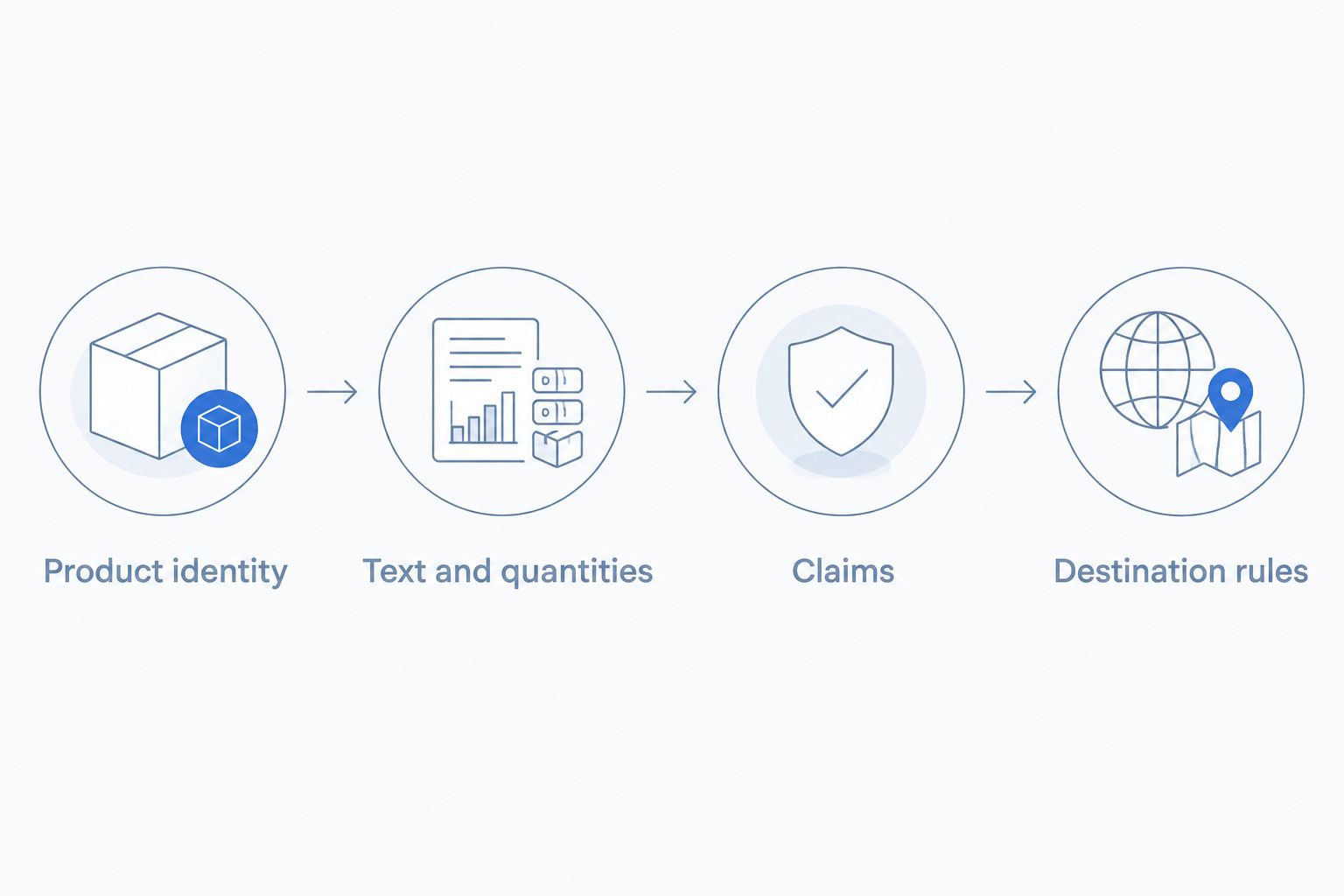
For 2026 asset records, distinguish approved product facts from approved creative choices. A background can remain acceptable while a packaging revision makes the product depiction obsolete.
Listing upload and verification
- Open the intended listing. In Amazon Seller Central, locate the correct product and variation before entering its image-editing area. Verify the identifier against your reference pack rather than relying on a similar title.
- Place images by role. Put the approved main image in the main slot. Arrange secondary images so buyers can understand the product, contents, and details without decoding the sequence.
- Save the listing changes. Follow the controls shown in your account. Keep your local approved files and the upload record; submitting a file is not the same as confirming its published appearance.
- Inspect the published listing. Once changes appear, check image order, cropping, variation assignment, legibility, and any displayed warnings. Inspect both the listing view and enlarged images.
- Record the published set. Note which revision went live. Keep that record separate from experiments so a later update does not accidentally restore a rejected draft.
Expected result: The correct variation displays the approved image set, and you have a record of what was published.
Do not treat a successful upload as product approval. A file can upload successfully while still showing the wrong lid, an outdated label, or an accessory that is not included.
Second workflow: turn approved references into video briefs
A second workflow starts after the product references are approved: use the same factual brief to plan a product video or ad creative. Icarus supports both product photos and videos, but this workflow does not assume that an Amazon upload automatically triggers video generation.
- Reuse product facts. Carry over the exact variation, current packaging, included contents, and restrictions from the photo brief.
- Write the video action. Specify what changes during the clip, such as a change in viewpoint or a product reveal. Keep the requested action consistent with the physical item.
- Review the sequence. Check that labels, closures, proportions, and included components remain accurate throughout, not just in the opening frame.
- Approve by destination. Evaluate an Amazon listing video separately from a social ad. Do not assume that acceptance or suitability transfers between placements.
Expected result: Photo and video briefs share the same product facts while retaining separate creative and publishing checks.
To improve Amazon listing conversion rates, make the image sequence answer purchase questions rather than repeat attractive scenes. A contents image answers what arrives; a detail image answers how the product is constructed. Those are distinct jobs, even when the lighting stays consistent.
Keep evaluation separate from production. If you change the image sequence alongside other listing elements, a later change in conversion does not isolate the effect of the images.
Troubleshooting
The product changes between images
Return to the approved reference pack and compare the inconsistent detail. Tighten the brief around that feature, then regenerate or use an accurate source image instead. Do not approve an incorrect product merely to preserve the scene.
Label text looks convincing but is wrong
Compare the label with the original artwork at a readable size. Reject invented wording or distorted marks. Where appropriate, use a controlled editing process with approved artwork rather than relying on generated lettering.
Amazon rejects or suppresses an image
Read the specific notice in Seller Central and compare it with the current requirements for that slot and category. Correct the identified issue before resubmitting. Repeatedly uploading an unchanged file does not resolve the underlying mismatch.
The wrong variation receives the update
Stop additional uploads and verify the SKU and listing identifier against your asset records. Correct the affected variation, then inspect the live listing again. Distinct filenames reduce confusion but do not replace identifier checks.
The main image looks too much like an ad
Remove the promotional composition from the main-image brief and return to the applicable product-image requirements. Keep lifestyle scenes and explanatory treatments for placements where they are permitted.
Customize your workflow
For a small team, keep approval simple: one owner verifies product facts, and one owner confirms publishing requirements. The same person can hold both roles, but the checks should remain separate.
For repeat work in 2026, keep a reusable brief with product facts, image roles, scene direction, prohibited changes, and approval status. Update the facts when packaging or included contents change; do not automatically regenerate unaffected assets.
Before selecting a tool, compare the tasks you actually need. The Amazon seller product-photography guide addresses that buying decision. Choose Icarus when keeping photo and video creation together fits your process; choose separate tools when your evaluation supports separate choices.
FAQ
What is an Amazon listing images workflow?
An Amazon listing images workflow moves product references through briefing, creation, accuracy review, file preparation, and publishing. Keep product approval separate from Amazon's destination requirements.
Can Icarus publish images directly to Amazon?
This guide uses manual publishing through Amazon Seller Central. It does not rely on a direct connection or automatic synchronization.
Can I use generated images as my Amazon main image?
Use an image only when it accurately represents the product and meets Amazon's current main-image and category requirements. Generation alone does not establish eligibility.
Should I reuse photos from my existing Amazon listing?
Use your original approved product files when you have them. Listing screenshots are a weaker reference than originals, especially for checking small labels and product details.
How many images should I plan for a listing?
Plan images around distinct buyer questions and the slots available for your listing. The six-image example in this guide is an illustrative brief, not an Amazon requirement.
Is one creative suite better than separate photo and video tools?
One suite fits teams that want both content types in one product. Separate tools fit teams that prefer to evaluate and manage each production task independently.
Do I need to rebuild every image when packaging changes?
Review every asset that depicts the changed packaging or its details. Replace affected files and retain only assets that still represent the current product accurately.
One last thing
Keep a rejection folder with a reason attached to each file. A note such as incorrect cap or outdated label prevents an attractive but inaccurate draft from returning during the next campaign. Your approval record matters as much as your prompt library.