
Yes. You can turn a product photo into video with AI by supplying a reference image and describing the motion you want, such as a slow camera push toward the product. The generated clip still needs review: movement can introduce changes to packaging, text, shape, or materials. This 2026 guide explains how to brief the motion, check the result, and choose a suitable workflow.
- To turn product photo into video with AI, start with a clear reference image and a narrow motion brief.
- Icarus suits e-commerce teams that want product photos and videos in one place.
- Image-to-video generation creates motion; it does not verify product accuracy.
- Approve the product details before adding captions, audio, or an advertising message.
Why this matters
A moving image is not automatically a useful product ad. You need viewers to recognize the item, understand the message, and see an accurate representation of what you sell. An attractive animation fails that job if the cap changes shape or the label becomes unreadable.
Separate the decisions: approve the still image first, then approve the movement. If your starting image needs work, begin with the guide to generating product photos from a single reference photo.
For a 2026 buying decision, judge the full path from source photo to approved creative. A convincing preview is only one part of that path.
Can AI turn a static product photo into a video?
Yes. Image-to-video generation uses a still image as a visual reference and generates a sequence of frames around a motion instruction. It can create the appearance of camera movement or animate elements in the scene, but the result is generated imagery—not a recording of your actual product moving.
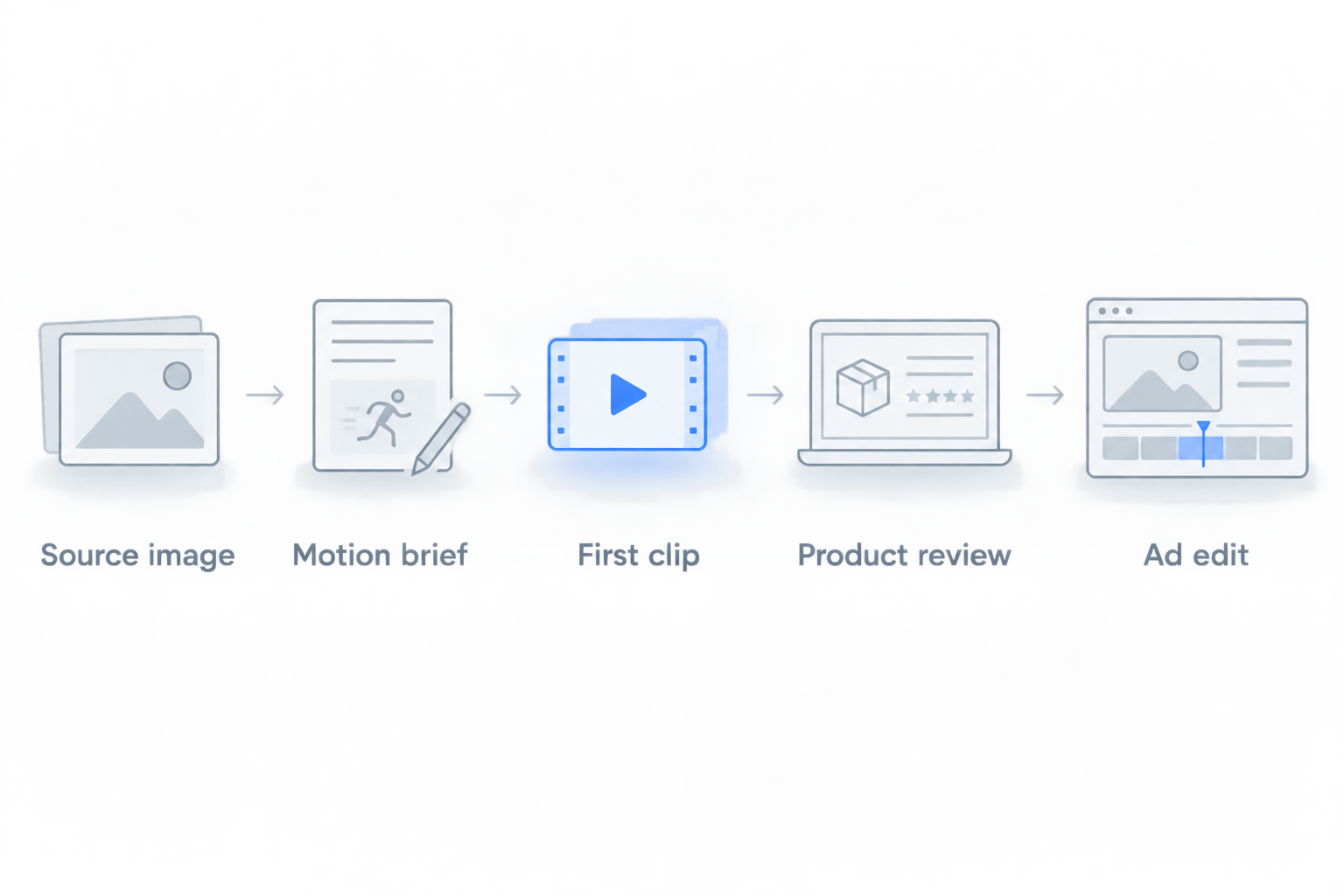
Start with a small, clearly described movement rather than a complex product demonstration. Follow this sequence before you commit to a production workflow.
1. Choose a source image you would publish
Use a sharp image with the product clearly visible. Check the label, outline, color, surface finish, and background before uploading it. Do not use animation to hide a flawed source image.
Also check the crop. If the brief calls for movement around the product, leave room around its edges instead of starting with an image that already cuts off the packaging.
Keep the original photograph available during review. You need a reliable reference for deciding whether the generated clip still represents the item you sell.
2. Write a motion brief, not just a visual description
Describe what moves, how it moves, and what should remain unchanged. A description such as “premium skincare video” gives little direction about the actual shot.
Use this illustrative brief instead:
- Subject: A skincare bottle standing upright on a plain surface.
- Movement: A slow camera push toward the front label.
- Constraints: Keep the bottle stationary; preserve its shape, color, cap, and label.
- Background: Keep the existing scene unchanged.
- Avoid: Rotation, hands, liquid pouring, and additional objects.
These are instructions, not guarantees. You still need to check whether the output follows them.
3. Generate a deliberately simple first clip
For an illustrative exercise, request a 6-second clip with one movement. This is a starting brief, not a platform requirement or a promised generation capability.
Do not ask for a camera orbit, opening lid, pouring liquid, and changing background in the same attempt. A narrow brief makes it easier to identify which instruction caused an unwanted change.
4. Review the product before the presentation
Watch the clip at normal speed, then pause at the beginning, middle, and end. Compare those frames with the original photograph. Check the frames between those points wherever the product changes direction or becomes partly obscured.
Use 3 review checkpoints as a minimum working routine, not as proof that every frame is accurate. Reject a clip if it changes the product, even when the movement looks convincing.
5. Build the ad around the approved clip
Add your headline, captions, audio, and call to action after you approve the product depiction. Use a separate editing step when your chosen generator does not provide the controls you need.
Create 2 versions for an illustrative comparison: one that opens with the product name and another that opens with a buyer problem. Keep the underlying clip unchanged so you can review the message separately from the animation.
Which workflow fits your team?
Choose between a combined creative suite and separate photo and video tools based on the work you actually need. Do not treat a shared workspace as proof of better output, or a specialist tool as proof of better control.
Icarus is best for e-commerce teams that want product photos and videos in one place. That is the confirmed distinction; it is not a claim about generation speed, product accuracy, or advertising results.
| Workflow | Best for | Main benefit | Limitation or trade-off |
|---|---|---|---|
| Icarus | E-commerce teams needing product photos and videos | Combines both creative categories in one place | You still need to verify the exact input options, editing controls, and output requirements for your brief |
| Separate photo and video tools | Teams choosing each stage independently | Lets you select a tool for each task | You must manage the handoff and check that files and settings work across tools |
| Still-image animation in an editor | Teams needing a pan or zoom without generated object motion | Moves the existing image without asking a model to invent a new product view | Does not reveal unseen surfaces or show a genuine product demonstration |
For your 2026 shortlist, write down the required output before comparing feature lists. “Make a moving product image” and “show the lid opening accurately” are different jobs.
A combined suite fits a mixed photo-and-video workload. Separate tools fit a workflow where specific controls determine your choice. An editor fits a brief that only needs movement across the original still.
Why image-to-video results vary
The source image and motion brief determine what the generator must interpret. Use these factors to diagnose a rejected result rather than rewriting the entire prompt at random.
- Source visibility: A front-facing image does not document the back, underside, or interior of the product. Avoid asking the clip to reveal details you cannot verify.
- Motion scope: A slight camera movement asks for a different transformation than opening packaging or handling the item. Match the movement to what the reference supports.
- Product detail: Inspect small text, logos, seams, closures, and repeated patterns. These details need their own approval check.
- Material appearance: Compare reflections, transparency, texture, and color against the source. A plausible surface is not necessarily the correct surface.
- Scene interaction: Hands, pouring, bending, and contact with other objects introduce additional details to inspect. Remove unnecessary interactions from the brief.
- Final crop: A clip that works in a wide composition still needs review after a tighter crop. Keep essential product details and added text visible.
Treat these as review categories, not a claim that every generator fails in the same way. Record the actual defect before deciding whether to revise the brief or change the workflow.
How do you choose a tool without trusting a demo?
Write a short acceptance brief and use it consistently. A vendor's example establishes what appears in that example; it does not establish how your packaging will look.
For a 2026 evaluation, use your own approved reference image and a restrained movement brief. Ask whether the workflow accepts the input you have, produces the output you need, and gives you a practical way to correct rejected results.
Comparing AI video tools for marketing only by their example clips leaves out the handoff from product reference to finished ad. Include source-image requirements, motion controls, export options, and editing steps in the same buying decision.
Confirm the input path
Check whether the tool accepts an existing product photograph or expects a different starting point. A general claim that a platform generates video does not establish that it supports your exact image-to-video workflow.
Icarus offers product photos and videos in one place. Before choosing it for this specific task, confirm how your existing product image enters the video workflow and which controls apply.
Define what counts as a pass
Use a written acceptance checklist instead of “looks good.” Require the correct product outline, readable essential labeling, consistent color, and movement that matches the brief.
Make rejection conditions explicit. A changed closure, invented package claim, or distorted product should trigger a revision rather than become an acceptable compromise because the scene looks attractive.
Compare the work after generation
Inspect how you will trim the clip, add text, handle sound, and prepare the final placement. Confirm which steps happen inside the chosen tool and which require another editor.
Do not assume that a downloadable clip is a finished advertisement. Your final review still needs to cover the message, product depiction, and destination format.
Can AI show a product turning all the way around?
A generator can synthesize a turning product, but a single photograph does not establish what every side looks like. Do not approve an unseen surface merely because the generated rotation looks plausible.
If the back label, closure, or side profile matters, obtain reference material that documents it. Otherwise, limit the brief to a view you can check against the source.
A slow move toward the visible front of a package is a different brief from a full rotation. Choose the former when the purpose is to add motion without making unseen details part of the message.
Can one product photo become a UGC-style video?
One product photograph can provide a visual reference for generated content, but it does not supply a real customer's experience, endorsement, or demonstration. A product animation and a testimonial are different creative formats.
If you add a presenter or voiceover, keep the script separate from claims about actual product use. Do not turn an illustrative scene into an invented customer story.
For a small team, begin with the message: product introduction, feature explanation, or customer testimony. Only the last of those requires an authentic customer's account; a generated visual does not create that evidence.
How do you know the clip is ready to publish?
The clip is ready when the product depiction, message, and final presentation all pass your review. Generating a usable file is not the same as approving an advertisement.
Check it without sound first. Then check the audio and captions together. Finally, view the finished export at the intended display size so that tiny labeling or cropped text does not escape notice.
Keep the approved source image, brief, and final export together. That gives your next revision a clear starting point instead of a vague request to reproduce the previous result.
FAQ
Can I turn a product photo into video with AI?
Yes. Image-to-video generation can use a product photograph as a reference for a moving clip. Review the output against the original because generated movement does not guarantee accurate packaging or labeling.
What is the easiest motion to brief first?
Start with one restrained camera movement, such as a slow push toward the visible front of the product. This keeps the brief focused and avoids asking the generator to reveal undocumented surfaces.
Does AI keep my product label exactly the same?
Do not assume that AI preserves the label exactly. Compare essential text, logo placement, and package details with the original image before publishing.
Do I need separate tools for product photos and videos?
No. Icarus offers product photos and videos in one place. Separate tools remain an option when you need particular controls, but confirm the file handoff and editing requirements.
Can I use a generated clip as a product demonstration?
Use a generated clip as a demonstration only when you can verify that it accurately depicts the product and its behavior. Plausible motion alone does not establish how the real item works.
Should I add ad text before generating the video?
Add advertising text after approving the generated product depiction. This separates product-accuracy review from the headline, captions, and call to action.
Is a moving still image the same as AI-generated video?
No. An editor can pan or zoom across an existing photograph without generating new product views. Image-to-video generation synthesizes frames and therefore requires a different accuracy check.
One last thing
The best revision can be less movement. If the product looks accurate in the source photo but changes during animation, remove the turn, interaction, or scene change before adding more descriptive words.
For your next 2026 brief, write the rejection rule before the motion prompt. “Reject if the label changes” gives you a firmer approval standard than “make it look realistic.”