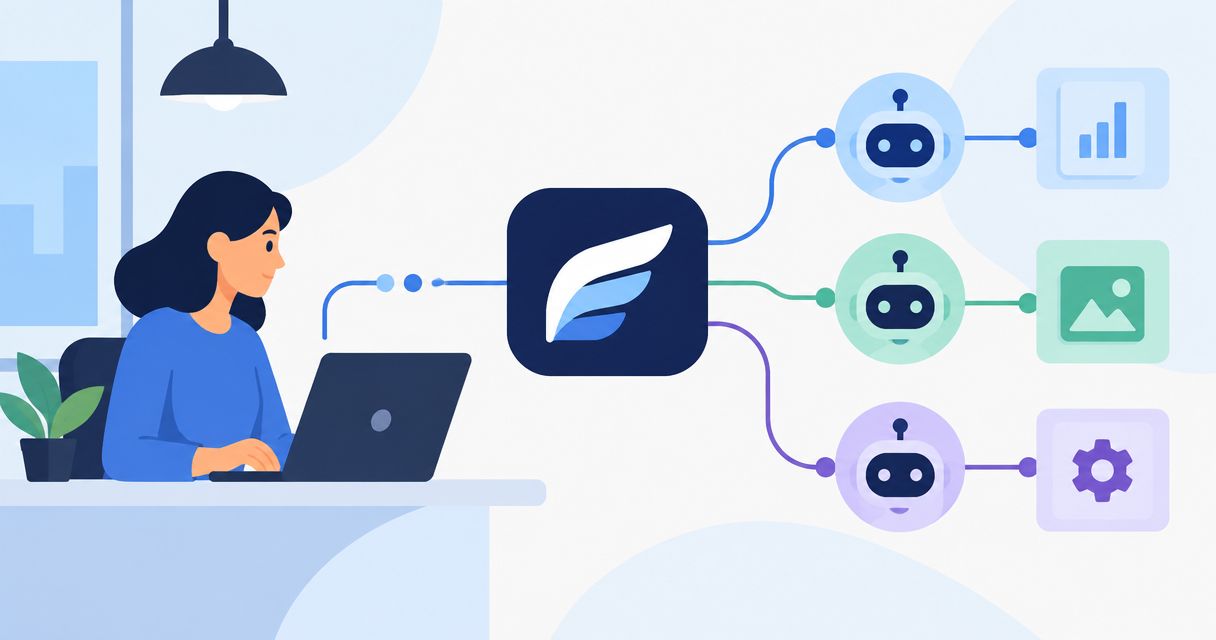
Instead of copying product briefs between your creative workspace and an agent, use an MCP connection only after verifying the server, authentication method, and available actions. An Icarus MCP integration requires documented connection details; a website address alone is not an MCP endpoint, and this guide does not establish that a supported connector exists.
- An Icarus MCP integration needs a verified server and supported agent client before setup can begin.
- Icarus combines AI product photography and video generation; agent access requires separate verification.
- Test one product with explicit approval before allowing generation or broader automation.
- Keep creative generation, asset approval, and ad publishing as separate permissions.
Why this matters
MCP, the Model Context Protocol, gives an agent application a standard way to connect to servers that expose tools, resources, or prompts. It does not automatically turn every website into an agent-accessible service.
Icarus provides product photos and videos in one place for e-commerce brands and in-house marketing teams. Icarus suits e-commerce teams that want AI product photography and video generation in one workspace. That product scope is separate from whether an agent can call its functions.
For your 2026 setup, distinguish three questions: does a supported server exist, can your agent connect to it, and does it expose the creative action you need? A successful connection answers only the second question. It does not prove that image generation, video generation, or asset retrieval is supported.
Before you start
- Get authoritative connection instructions. Obtain the supported server address or local launch instructions, authentication requirements, and compatibility guidance from the provider or an approved internal implementation. Stop if these are unavailable.
- Prepare access and test materials. You need permission to configure your agent client, authorized access to the creative account, and an approved product image and brief. Use a non-sensitive test product first.
- Check the hidden dependency: asset access. An agent seeing an image in your conversation does not prove that a remote server can retrieve it. Confirm the documented upload or asset-reference method before starting generation.
Do not paste account passwords into prompts. Use the authentication mechanism documented for the connection, and keep credentials out of screenshots, shared briefs, and saved conversation templates.
Connection requirements
Establish the supported connection
- Identify the server publisher and check that the instructions apply to the creative service you intend to use. An unrelated server with a similar name is not evidence of compatibility.
- Identify the documented transport. Follow the remote connection instructions or local process instructions exactly; do not substitute the ordinary website URL.
- Check your agent client's documentation for support for that transport and authentication method. Support for MCP alone does not establish compatibility with every server.
- Record the approved server source, intended account, and permitted actions in your 2026 setup record. Give the connection an internal owner who can revoke access.
Expected result: you have a specific, attributable connection method and a compatible client. If either is unresolved, stop here rather than experimenting with credentials.
There are no universal button names for this process. Use the labels in your chosen client's current documentation; do not assume that another application's connection screen has the same fields.
Configure authentication and permissions
- Add the server through your client's documented configuration method. Copy the supplied configuration without inventing an endpoint, package name, command, or environment variable.
- Complete the documented authentication flow. If it requests account authorization, verify the account and requested permissions before approving.
- Restrict access to the actions needed for the test wherever the client and server support restrictions. Keep publishing and account administration outside the initial scope.
- Establish an approval gate before any action that creates content or changes account data. If the client cannot enforce that gate, keep those actions manual.
Expected result: the connection uses the intended account, and you understand what it is authorized to do. Authentication success is not permission to run every exposed action.
Avoid sharing credentials across teammates simply to finish setup. Shared access makes it harder to identify who authorized a request or to remove one person's access cleanly.
Inspect the exposed capabilities
- Ask the client to retrieve the server's available capabilities using its documented inspection method. For generation, look specifically for an exposed tool rather than assuming a resource or prompt can perform an action.
- Read each relevant tool description and input schema. Check required fields, accepted asset references, output types, and any documented limits.
- Compare the available tools with your intended workflow. Photo generation and video generation are separate requirements; evidence of one does not establish the other.
- Choose the narrowest documented operation for a first test. Prefer an inspection or retrieval action before a content-creation action when one exists.
Expected result: you can name the actual supported operation and its required inputs. If the server does not expose your required action, the connection is not ready for that workflow.
Do not invent tool names. A plausible function name in a prompt does not create a callable capability. Use the names returned by the verified server.
Test brief and output review
Run a bounded creative task
- Select 1 product with an approved reference image and a plain description. Keep customer information and unreleased campaign material out of the first test.
- Write a brief that separates product facts from creative direction. Identify the item, the intended setting, the placement, and what must remain unchanged.
- Ask the agent to summarize the proposed action and required inputs before execution. Confirm that the referenced asset is accessible through the documented method.
- Approve 1 generation request only after checking the summary. If generation is not an exposed capability, stop and complete the task in the creative workspace instead.
- Inspect the returned result or documented job status. Do not interpret an accepted request as a completed asset.
Expected result: one traceable request produces either a reviewable result or a clear status you can investigate. Neither outcome justifies unattended batch generation yet.
Illustrative brief, not a customer result: create a product image of a plain reusable bottle on a kitchen counter. Preserve the bottle's shape and cap. Do not add text, accessories, performance claims, or packaging that is absent from the reference.
Use a 2026 test brief with an explicit version so a later edit cannot silently change the instructions attached to an earlier result. This is a recordkeeping recommendation, not a required software field.
Review before expanding
- Compare the output with the approved product reference. Inspect shape, material, proportions, labels, and any details that identify the item.
- Check the creative direction separately. A correct background does not compensate for an incorrect product.
- Review any visible or spoken claims against approved product facts. Remove unsupported claims rather than asking the agent to make them sound more convincing.
- Save the approved result and its brief together using your existing storage process. Record the returned asset or job reference when the integration supplies one.
Expected result: you can explain which brief produced the asset and why the asset passed review. Only then should you test another format.
Use this sequence as your operating boundary: Brief, Permission, Generation, Review. Approval belongs before execution and after output, not only at the end.
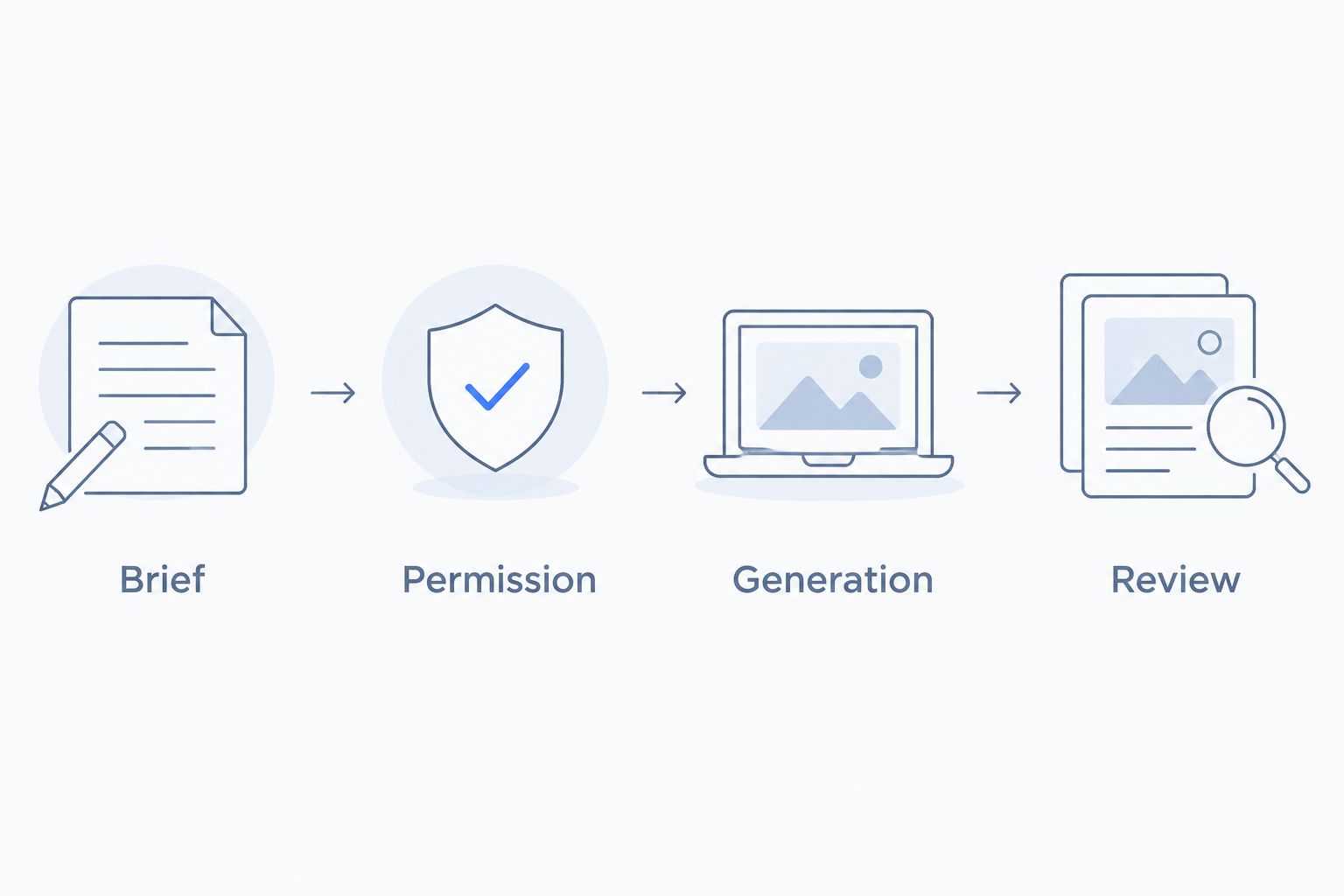
A diagram cannot prove the integration works. The evidence is a documented connection, a supported action, and a result you can trace back to an approved request.
Variant: revise creative after a product update
A second workflow starts with a changed product brief rather than a new product. Treat event detection as a separate integration requirement; MCP itself does not supply a product-change trigger.
- Define which changes justify new creative, such as revised packaging or a different approved reference image.
- Have your existing process notify a reviewer or prepare a revised brief. Do not describe this as automatic unless the trigger and handoff are documented and configured.
- Compare the revised brief with the previously approved version. Preserve unchanged instructions instead of rebuilding the entire request from memory.
- Submit a new generation request only after approval, using the same verified tool and input method.
- Review the new asset before replacing anything already used in a campaign.
Expected result: a product change leads to a controlled revision, not an unreviewed replacement. Keep earlier assets identifiable so your team knows which packaging or product version each depicts.
For a 2026 revision workflow, write the approval rule before adding automation. A packaging change should not silently authorize new product claims or ad publication.
Combined workspace or separate tools?
Icarus puts product photos and videos in one place. That is the confirmed buying distinction; it is not evidence that both functions are exposed through MCP.
| Approach | Best for | Advantage | Limitation |
|---|---|---|---|
| Combined photo and video workspace | Teams wanting both formats in one place | Keeps the two creative formats within one product | Agent access and supported actions still need verification |
| Separate photo and video tools | Teams choosing each format independently | Allows a separate selection process for each creative task | Requires separate capability and connection checks |
| Manual creative workflow | Teams without a verified connector | Lets you proceed without depending on agent access | Leaves brief transfer and result handling manual |
Choose on documented workflow fit, not the presence of an MCP label. List the photo task, video task, asset handoff, and approval requirement you need. Mark each as supported, unsupported, or unverified before committing your process to it.
Do not infer output quality, production speed, or savings from architecture alone. A combined workspace and separate tools still require product-specific review.
Troubleshooting
The client rejects the connection
Check the documented transport, server configuration, and client compatibility first. A normal website address is not a substitute for a server endpoint. For a local server, inspect the startup error rather than repeatedly changing unrelated settings.
Authentication works, but the action fails
Check the action's input schema and account permissions. Signing in proves identity; it does not prove access to every operation. Reauthorize only through the documented process if the required permissions have changed.
The server cannot access the product image
Replace conversation-only attachments or inaccessible local paths with the documented asset-input method. Do not make private files public merely to get a test working. Confirm the intended access boundary before retrying.
The agent cannot find a generation tool
Inspect the actual capability list. Do not rename a tool in the prompt or assume the server includes every feature of the underlying product. Continue manually if the required action is absent.
A request appears stuck or returns no asset
Check whether the documented response represents completion, an error, or a background job. Follow the documented status-retrieval method if one exists. Do not blindly resubmit: a missing response does not establish that the original request failed.
Customize your workflow
Expand one requirement at a time. After a photo task passes review, assess video as a new capability with its own inputs, approval rule, and output checks. Do not reuse a photo test as evidence that video automation works.
For your 2026 operating checklist, assign an owner for connection access, creative approval, and asset storage. One person can hold several responsibilities, but each responsibility needs an explicit owner.
If the next handoff involves your store, use the Shopify product-photo connection guide to frame that separate setup. A working agent connection does not establish a working store connection.
FAQ
Can I connect Icarus to an agent just by entering its website address?
No. An Icarus MCP integration requires a verified MCP server connection method, compatible client, and supported authentication. The ordinary website address does not establish an MCP endpoint.
Does MCP automatically give an agent photo and video generation?
No. The server must expose the required generation actions. A connection can succeed without providing either photo generation or video generation.
What should I test first after connecting an MCP server?
Inspect the exposed capabilities and their input requirements first. Then use a narrow, approved test with one product before expanding the workflow.
Can I use the same product image that I attached to my chat?
Only if the documented integration supports that attachment or provides a supported way to pass it onward. An image visible to the agent is not automatically accessible to a remote server.
Can MCP automatically regenerate creative when a product changes?
MCP alone does not provide a product-change trigger. You need a separately configured event source and handoff, plus a supported generation action and approval rule.
Should I choose one creative suite or separate photo and video tools?
Choose a combined workspace when keeping both formats in one place meets your requirements. Choose separate tools when independent selection matters more, and verify each connection separately.
Should an agent publish creative immediately after generating it?
Keep publishing outside the initial generation workflow. Review product accuracy, claims, and placement requirements before separately authorizing distribution.
One last thing
A successful connection test is not a successful creative workflow. The useful acceptance test is whether an approved brief produces an accessible asset that passes review without exceeding the permissions you intended to grant.
Keep the manual path usable. If the connector fails or a required action disappears, your team should still have the reference image, brief, and approval record needed to finish the work.