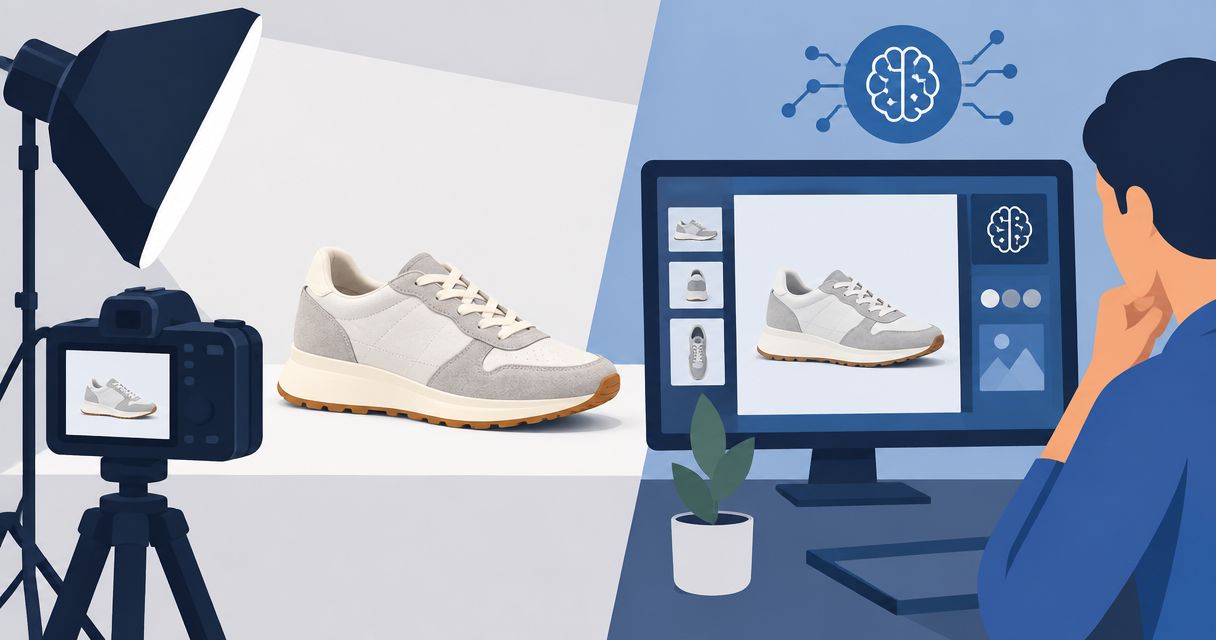
Instead of rebuilding product videos inside your ad account, use a file-based Icarus TikTok Ads Manager workflow: prepare your creative, save the finished video, and upload it into an ad draft. This guide covers that handoff and its checks—not a direct account connection, automatic publishing, or performance-data sync.
- Use a file-based Icarus TikTok Ads Manager workflow to move approved product videos into ad drafts.
- Prepare vertical creative, check product accuracy, and preview the uploaded file before publishing.
- Keep creative production separate from campaign settings, tracking, permissions, and advertising review.
- For AI product photography and video ads, choose one suite or separate tools around your actual production needs.
Why this matters
Uploading a video is not the same as connecting two accounts. A file handoff moves creative into TikTok Ads Manager. It does not transfer audiences, configure conversion tracking, or return campaign results to your creative workspace.
Icarus is best for e-commerce teams that want AI product photography and video creation in one place. That is the relevant buying distinction here. Your ad account still needs its own campaign setup and review process.
Start with Icarus for the creative-production side, then use TikTok Ads Manager for ad assembly and delivery settings. For your 2026 workflow, define who approves the creative and who controls publishing before either person begins.
Before you start
- Accounts and permissions: Have access to your creative workspace and the correct TikTok advertising account. Confirm that your advertising permissions allow you to create and edit ads; viewing reports alone is not enough.
- Approved materials: Gather accurate product references, a finished video file, approved ad copy, and the intended destination. Keep evidence for any product claims and permission for any people, voices, music, or other protected material you use.
- The handoff gotcha: Do not assume an uploaded ad video becomes an organic TikTok post or a Spark Ad. Spark Ads use authorized TikTok posts; uploading a standalone file follows a different creative path.
Decide which path you need before production. A standalone video ad and an ad using an existing post require different preparation, even when they promote the same product.
Prepare the creative handoff
Treat this as a production checklist, not a connector setup. The steps below avoid assuming that your creative workspace has a particular integration menu or that every TikTok account shows the same campaign workflow.
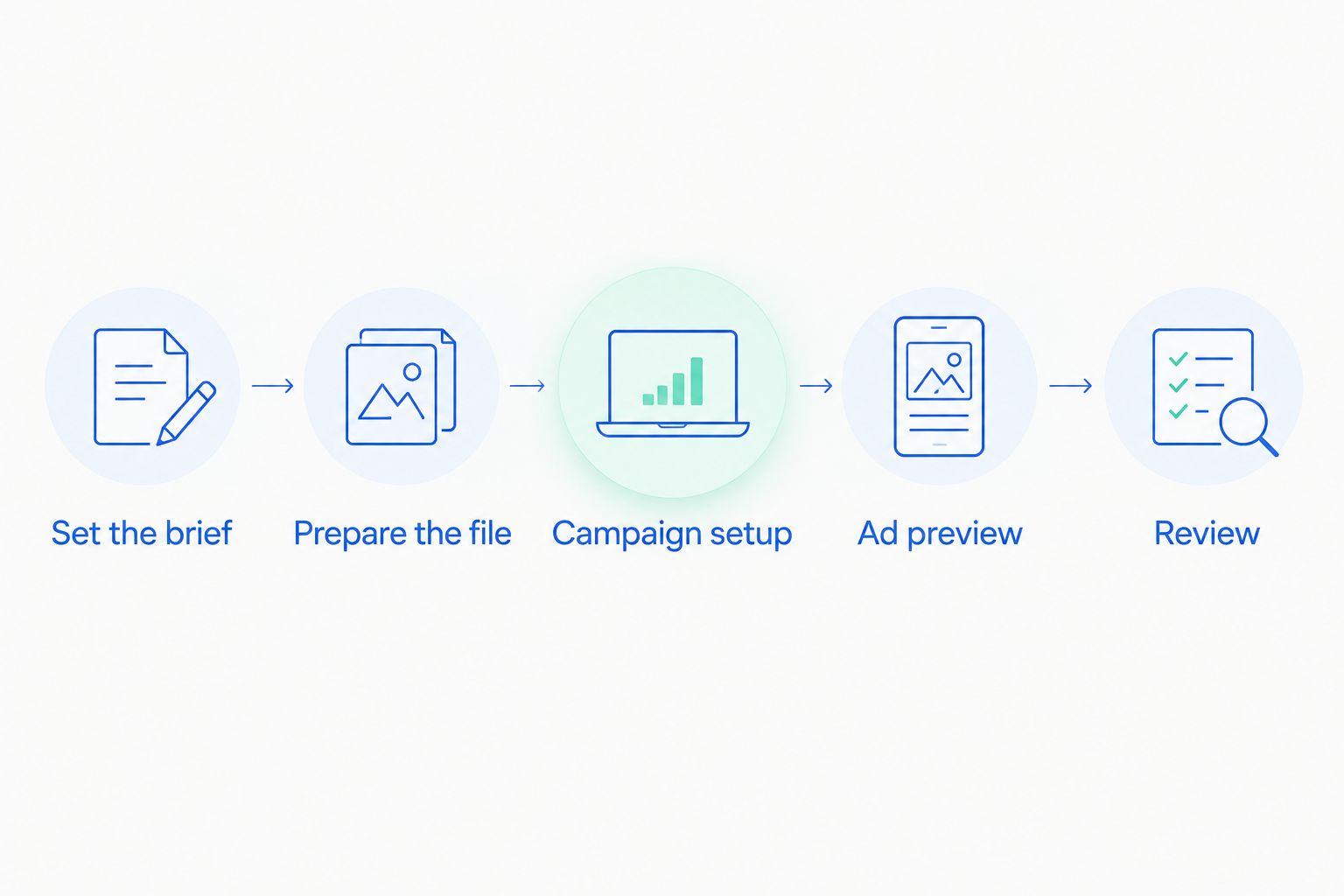
Set the brief
- Choose the destination first. Open the product page you intend to advertise. Check that the product, variant, and claims you plan to show match that page.
- Write the main message. Pick one reason to care about the product. Keep supporting details separate so you can decide what belongs in the video and what belongs in the ad copy.
- Define the format. Use a 9:16 vertical canvas for a full-screen TikTok creative. A 1080 × 1920-pixel canvas is a standard vertical production size, not a guarantee that an uploaded file meets every current placement requirement.
- List accuracy checks. Record the label, shape, color, included parts, and visible product details that must remain correct.
Expected result: You have a brief that ties the creative to a real product and destination. Another team member can review the intended message without guessing what the ad is supposed to sell.
For an illustrative exercise, brief a 15-second video for a generic desk organizer. Show the organizer holding ordinary desk items, explain its intended use, and finish with a clear next action. This is a production example, not a performance benchmark or a claim about a specific product.
Prepare the file
- Create the required assets. Use Icarus for AI product photography and video creation, keeping your approved product references beside the brief. Do not treat a visually convincing output as proof that every product detail is correct.
- Review the whole video. Watch from beginning to end with sound, then watch without sound. Check text, transitions, product continuity, and whether the message remains understandable.
- Save the finished video. Use the saving or download controls available in your workspace. Check the resulting file against TikTok's current upload requirements before building the ad.
- Give the file a useful name. Use a pattern such as product, concept, version, and approval status. Keep a separate record of the original brief and approved copy.
Expected result: You have a playable video file and a clear record of which version is approved. A saved preview, still image, or project reference is not a substitute for the video file you intend to upload.
Keep a 2026 approval checklist with the file. Record approval of product appearance, copy, audio rights, and destination; do not assume approval of one element covers the others.
Build the TikTok ad draft
The relevant configuration units are the campaign, ad group, and ad. Campaign choices affect the controls available later, so choose settings around your advertising goal rather than copying an unrelated tutorial screen.
Campaign and ad group
- Select the correct advertising account. Check the account identity before creating anything. An agency or in-house buyer can have access to several accounts.
- Start campaign creation with
Create. Choose the objective that matches the business action you intend to measure. A traffic visit and a purchase are different goals. - Configure the ad group. Review placement, audience, schedule, and spending settings. Keep those decisions separate from whether the video itself looks ready.
- Check measurement. If the campaign depends on website conversions, confirm that the intended event and destination are configured and working. Uploading creative does not install website tracking.
Expected result: The draft points to the intended audience, destination, and measurement setup. No creative upload has been mistaken for a completed campaign configuration.
For a 2026 launch, review the settings shown in your own account. TikTok's guided and automated campaign paths do not always expose identical controls, so follow the labels in the active workflow rather than searching for an assumed menu location.
Ad creative and preview
- Choose the appropriate identity path. Decide whether you are uploading standalone creative or using an authorized TikTok post. Do not switch paths simply because one appears easier to finish.
- Upload the approved video. In the ad's creative area, use Upload when that option is shown. Select the finished file, not an earlier working version.
- Add the ad text and destination. Check the full destination, including any tracking parameters your team uses. Choose the intended call to action from the options available for the campaign.
- Inspect the ad preview. Look for obscured captions, cropped product details, incorrect audio, and mismatches between the video and surrounding copy. Open the destination independently as well.
- Review before submission. Confirm the account, identity, creative, destination, and delivery settings. Submit only after the appropriate owner approves them.
Expected result: You have an ad draft containing the intended video, copy, identity, and destination. Submission still leaves TikTok's advertising review separate from your internal approval.
Choose one suite or separate creative tools
The practical choice is where you want to produce assets, not whether an upload button replaces campaign management. Compare the work you need to complete before choosing your creative setup.
| Approach | Best for | Advantage | Limitation |
|---|---|---|---|
| Icarus | Small teams producing both product photos and videos | Product photos and videos in one place | The file-based workflow described here still requires a separate advertising handoff |
| Separate photo and video tools | Teams evaluating each production task independently | You can choose each tool against a different brief | You must manage assets and approvals across separate workspaces |
Choose around your deliverables, not an assumed integration. If you need both product imagery and videos, evaluate both tasks during your decision. If you only need video, assess that workflow directly rather than assigning value to features you will not use.
Do not infer export formats, editing controls, commercial-use terms, or account-sync features from a category description. Check each requirement before committing your production process to a tool.
Replace creative when the product changes
A second useful workflow starts with a product update rather than a new campaign. A changed package, revised label, different included accessory, or edited claim is a reason to review existing creative.
Use this as a manual update process. It does not assume that a product change automatically triggers generation or updates a live TikTok ad.
- Identify the affected assets. Match the changed product to the videos and images that show it.
- Revise the brief. State exactly what changed and which approved details remain unchanged.
- Create and approve a replacement. Compare the new asset with current product references, not just the previous video.
- Add the replacement through the appropriate ad workflow. Review its copy and destination again. Do not assume a replacement bypasses advertising review.
- Record the handoff. Keep the approved file version beside the corresponding ad name or identifier in your team's working record.
Expected result: Your advertising creative represents the current product, with a traceable link between the approved file and the ad using it.
For a 2026 creative test, an illustrative plan is 3 versions with different opening messages and the same product, destination, and core claim. That is a controlled planning example, not a prescribed test size or a promise of better results.
Troubleshooting
The video will not upload
Check the actual file against TikTok's current format, file-size, duration, and resolution requirements for the selected placement. Confirm it plays locally. If necessary, create a new compatible file rather than changing its filename extension.
The product or text is cropped
Inspect the assembled ad preview, not just the source video. Reposition important text and product details away from interface overlays, then upload the revised version. A vertical canvas alone does not guarantee that every element stays visible.
You cannot select the intended identity or post
Check account access and the authorization required for the selected identity path. For Spark Ads, confirm that the intended post is authorized for advertising. Re-uploading a video does not grant permission to use an existing post.
The ad is rejected
Read the specific review reason and check the creative, claims, destination, and applicable advertising policy. Correct the underlying issue before resubmitting. Changing the filename or uploading the same content again does not address a policy problem.
Results do not appear in your creative workspace
A manual file upload does not create reporting sync. Read delivery and performance in TikTok Ads Manager, then record the corresponding creative filename in your reporting process. Keep an integration requirement separate from a file-export requirement.
Customize your workflow
Expand the brief into an asset set when you need more than one placement. Plan the product photos, video message, destination, and approval checks together, then review each finished asset on its own terms.
The Shopify-to-ad-ready product video workflow covers the adjacent product-to-creative process. Use that planning stage to establish accurate references before assembling the advertising campaign.
For your 2026 operating checklist, give each asset an owner and each publishing decision an approver. A shared folder does not establish who has signed off on a claim or who is responsible for the final destination.
FAQ
How do I connect Icarus to TikTok Ads Manager?
Use the file-based workflow in this guide: prepare and save your finished video, then upload it into a TikTok ad draft. This process does not establish account synchronization, automatic publishing, or reporting sync.
Does uploading a video create a Spark Ad?
No. Spark Ads use authorized TikTok posts, while uploading a standalone file follows a different creative path. Choose the intended identity and authorization workflow before assembling the ad.
What size should I prepare for a vertical TikTok video?
Prepare a 9:16 vertical canvas; 1080 × 1920 pixels is a standard production size. Check TikTok's current requirements for your selected placement before uploading the finished file.
Can I automatically update ads when a product changes?
The workflow described here is manual, not an automatic product-to-ad update. Review affected assets, approve a replacement, and add it through the appropriate advertising workflow.
Do I need website tracking before uploading creative?
Website tracking is separate from uploading a video. If your campaign measures website conversions, verify the intended conversion event and destination before launch.
Should I use one creative suite or separate photo and video tools?
Use one suite when producing both asset types in one place matches your workflow. Separate tools let you evaluate each task independently, but you must manage the handoffs and approvals between them.
Why does my uploaded ad look different from the saved video?
The assembled ad includes interface elements and placement-specific presentation. Inspect the ad preview for cropping, obscured text, audio issues, and surrounding copy before submission.
One last thing
Approve the destination with the same care as the video. An accurate product demonstration still creates a broken handoff when it sends someone to the wrong variant or a page making a different claim. Open the final destination from the completed draft before you authorize publishing.